Table of Contents

Totem Compass Features Glossary

Your guide to understanding how each feature & animation works on your Totem Compass.

Totem Compass Product Image

Features Glossary > Power & Charging > Vibe Mode

Vibe Mode

Action: Hold the Totem Compass in a vertical orientation.


Animation: Purple and Pink lights will pulse on either side of the Halo based on ambient noise. Battery life ~10 hours.

Features Glossary > Power & Charging > Night Vibe

Night Vibe

Action: Click the Power Button once while powered on.

Animation: LEDs will dim. Useful for dark environments or conserving power. Battery life ~14 hours.

Features Glossary > Power & Charging > Eco Mode

Eco Mode

Action: Click the Power Button twice while powered on.

Animation: Sound reactivity disabled. Touch Crystal twinkles. Battery life ~24 hours.

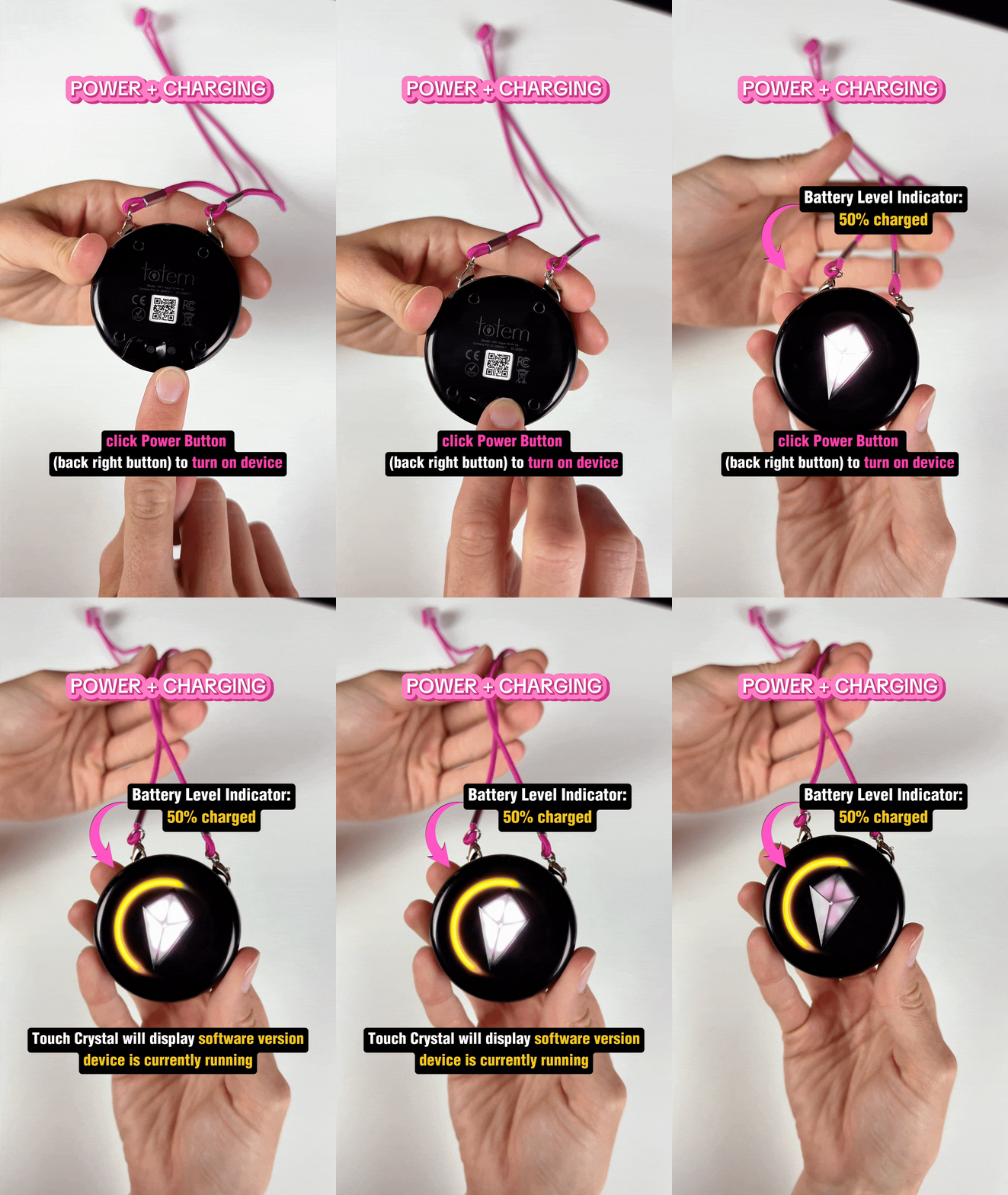
Features Glossary > Power & Charging > Battery Level: 100% Charged

Battery Level Indicator: 100% Charged

Action: Power on your Totem Compass.

Animation: A full green Halo indicates fully charged.

Features Glossary > Power & Charging > Battery Level: 50% Charged

Battery Level Indicator: 50% Charged

Action: Power on your Totem Compass.

Animation: A half-filled yellow Halo indicates 50% charged.

Features Glossary > Power & Charging > Battery Level: 25% Charged

Battery Level Indicator: 25% Charged

Action: Power on your Totem Compass.

Animation: A quarter-filled yellow Halo indicates 25% charged. Touch Crystal disabled at 25% or lower.

Features Glossary > Power & Charging > Lower Power Mode

Low Power Mode

Animation: Touch Crystal turns red and slowly breathes, indicating low power mode. Touch Crystal disabled.

Features Glossary > Bonding > Bonding

Bonding

Action: Move two Totem Compasses together ~1 inch away in Compass Mode. Wait 3 seconds, then press & hold Touch Crystal.

Animation: Halo fills with Aqua, changes to your peer’s color, collapses to a point, jumps into Touch Crystal.

Features Glossary > Bonding > Maximum Bonds Reached

Maximum Bonds Reached

Animation: Halo flashes a color quadrant showing all four peer colors.


Action: Delete an existing Bonded peer before bonding a new one.

Features Glossary > Bonding > Already Bonded

Already Bonded

Animation: Halo illuminates and flashes twice in the peer color.


Action: Bond a different Totem Compass.

Features Glossary > Bonding > Bonded Peer Color Check

Bonded Peer Color Check

Action: Hold two bonded Totems 1–6 inches apart.


Animation: Peer color displays in Touch Crystal, then illuminates fully.

Features Glossary > Navigation > Compass Mode

Compass Mode

Action: Hold the Totem Compass horizontally.


Animation: Touch Crystal illuminates after 3 seconds, indicating readiness.

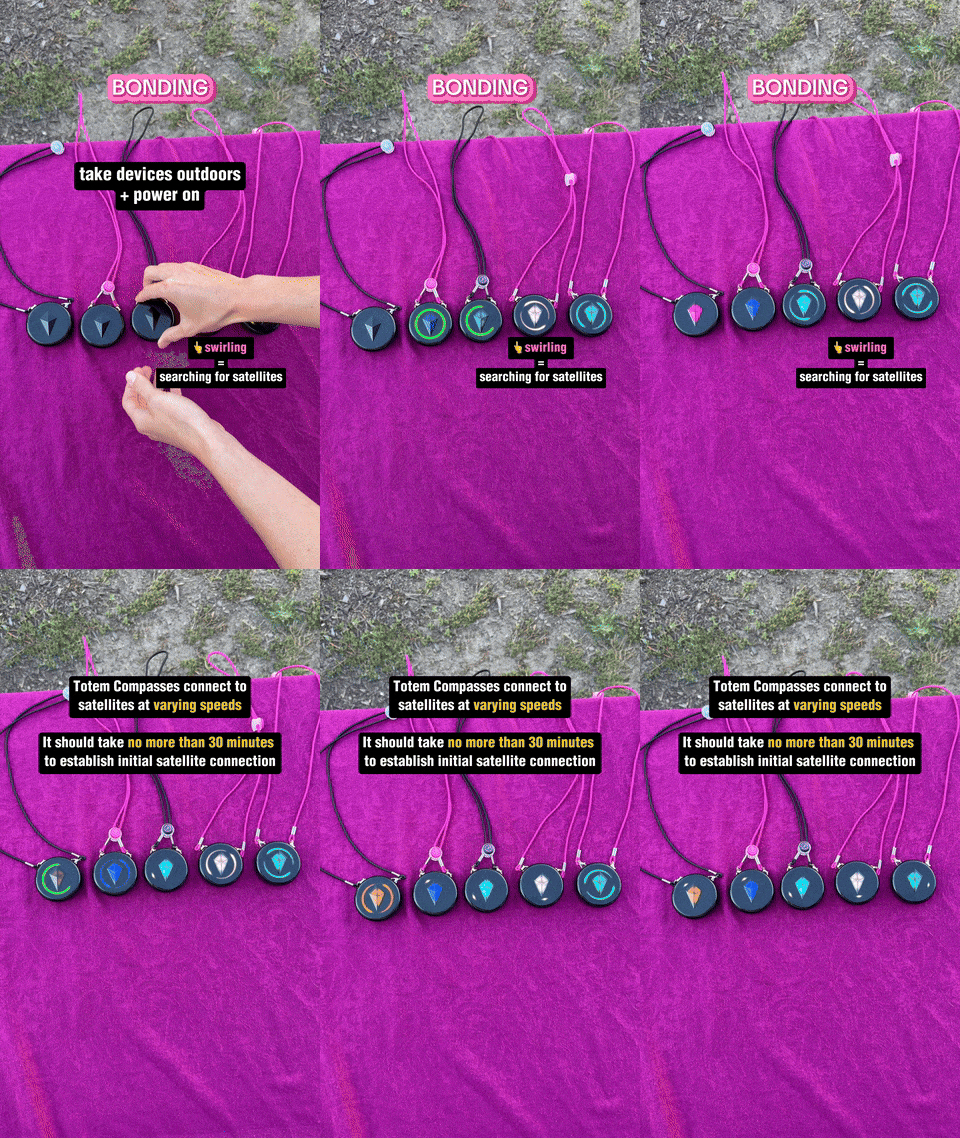
Features Glossary > Navigation > Searching for Satellite Connection

Searching for Satellite Connection

Action: Power on your Totem Compass.


Animation: Two LEDs rotate around the Halo at modulating speeds.

Features Glossary > Navigation > Satellite Connection Nearby

Satellite Connection Nearby

Action: Power on your Totem Compass.


Animation: Two LEDs rotate then enlarge, indicating near satellite lock.

Features Glossary > Navigation > Satellite Connection Established with Bonded Peer

Satellite Connection Established with Bonded Peer

Action: Power on your Totem Compass, wait 10–45 minutes.


Animation: Two rotating LEDs jump into your Touch Crystal.

Features Glossary > Navigation > Satellite Connection Established without Bonds

Satellite Connection Established without Bonds

Action: Power on your Totem Compass, wait 10–45 minutes.


Animation: LEDs stop rotating and display a white North Light.

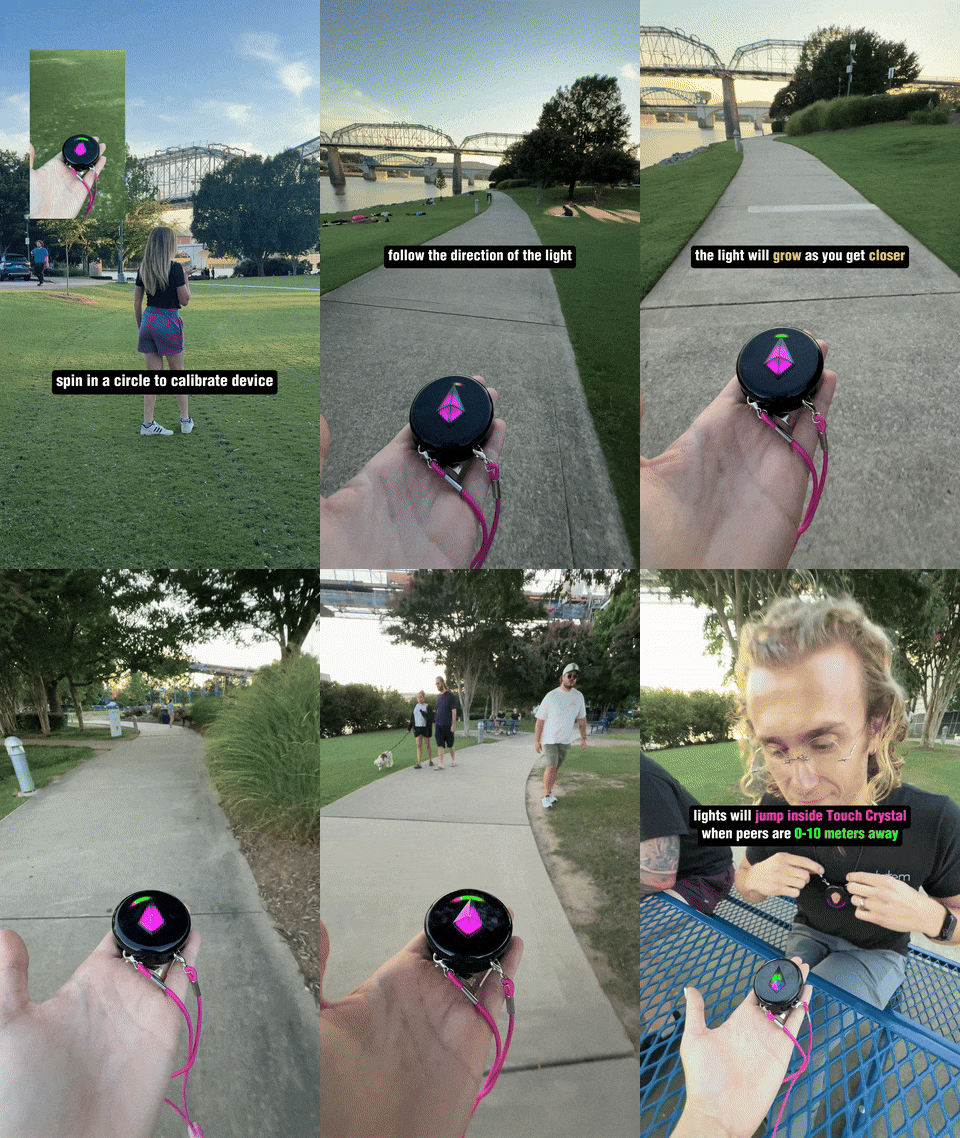
Features Glossary > Navigation > Calibration Success

Calibration Success

Action: Spin 360 degrees before navigating.


Animation: Halo flashes a white ring indicating calibration success.

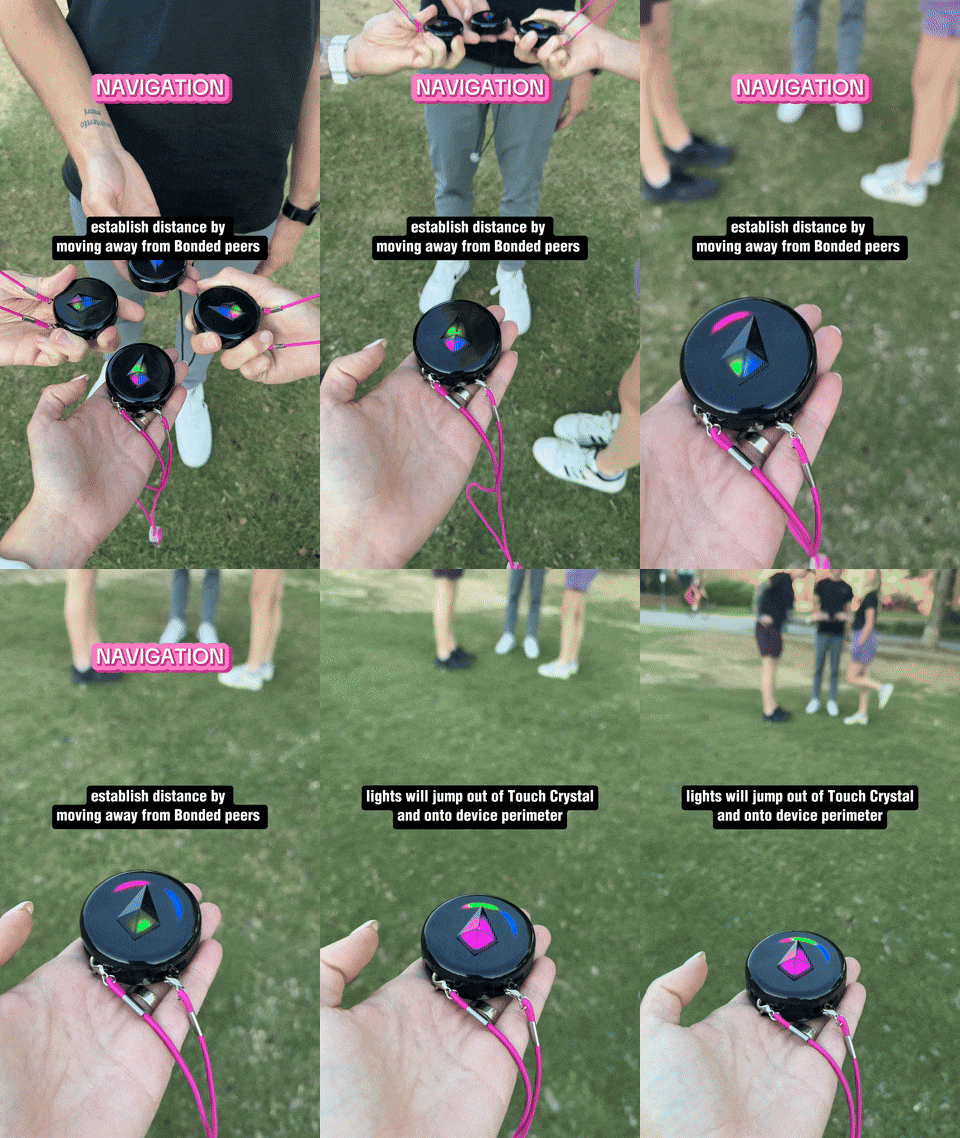
Features Glossary > Navigation > Bonded Peer is ~25M away

Bonded Peer is 50–25M away

Action: Travel in direction of the Bond Light in Compass Mode.


Animation: Bond Lights spread as you get closer.

Features Glossary > Navigation > Bonded Peer is <25M away

Bonded Peer is <25M away

Action: Travel in direction of the Bond Light in Compass Mode.


Animation: Bond Light jumps into the Touch Crystal when very close.

Features Glossary > Navigation > Bonded Peer is out of Range

Bonded Peer is out of Range

Action: Travel in Bond Light direction.


Animation: Bond Light breathes in and out, indicating out of range.

Features Glossary > SOS Alerts > SOS Alerts Enabled

SOS Alerts Enabled

Action: Press and hold SOS button for 3 seconds.


Animation: Red LED blinks behind SOS button.

Features Glossary > SOS Alerts > Receiving SOS Alert: Vibe Mode

Receiving SOS Alert in Vibe Mode

Animation: Touch Crystal blinks “SOS” in Morse code.

Features Glossary > SOS Alerts > Receiving SOS Alert: Compass Mode

Receiving SOS Alert in Compass Mode

Action: Tilt into Compass Mode during SOS.


Animation: Bond Light of SOS sender blinks rapidly.

Features Glossary > Bond Management > Bond Management Enabled

Bond Management Enabled

Action: Triple-tap the Touch Crystal in Compass Mode.


Animation: Pink ring appears, representing the first bonded peer.

Features Glossary > Bond Management > Cycle through Bonded Peers

Cycle through Bonded Peers

Action: Single-tap Touch Crystal in Bond Management.


Animation: Halo changes to each peer’s color.

Features Glossary > Bond Management > Remove Bonded Peer

Remove Bonded Peer

Action: Press and hold Touch Crystal in Bond Management.


Animation: Selected peer color disappears.

Features Glossary > Bond Management > HotSpot Launched

HotSpot Launched

Action: Triple-click SOS button.


Animation: Halo turns pink and rotates while scanning for HotSpot.

Features Glossary > Software Updates > Searching for WiFi

Searching for WiFi

Action: Triple-click SOS button.


Animation: Halo rotates white; Touch Crystal twinkles blue, purple, and pink.

Features Glossary > Software Updates > Software Update in Progress

Software Update in Progress

Action: Triple-click SOS button.


Animation: Touch Crystal twinkles; Halo fills with white showing download progress.

Features Glossary > Software Updates > Software Update Failure

Software Update Failure

Action: Triple-click SOS button.


Animation: Halo blinks orange; update discarded; device reboots on previous version.