
The Totem Explained
Detailed guidance for every part of the Totem experience.
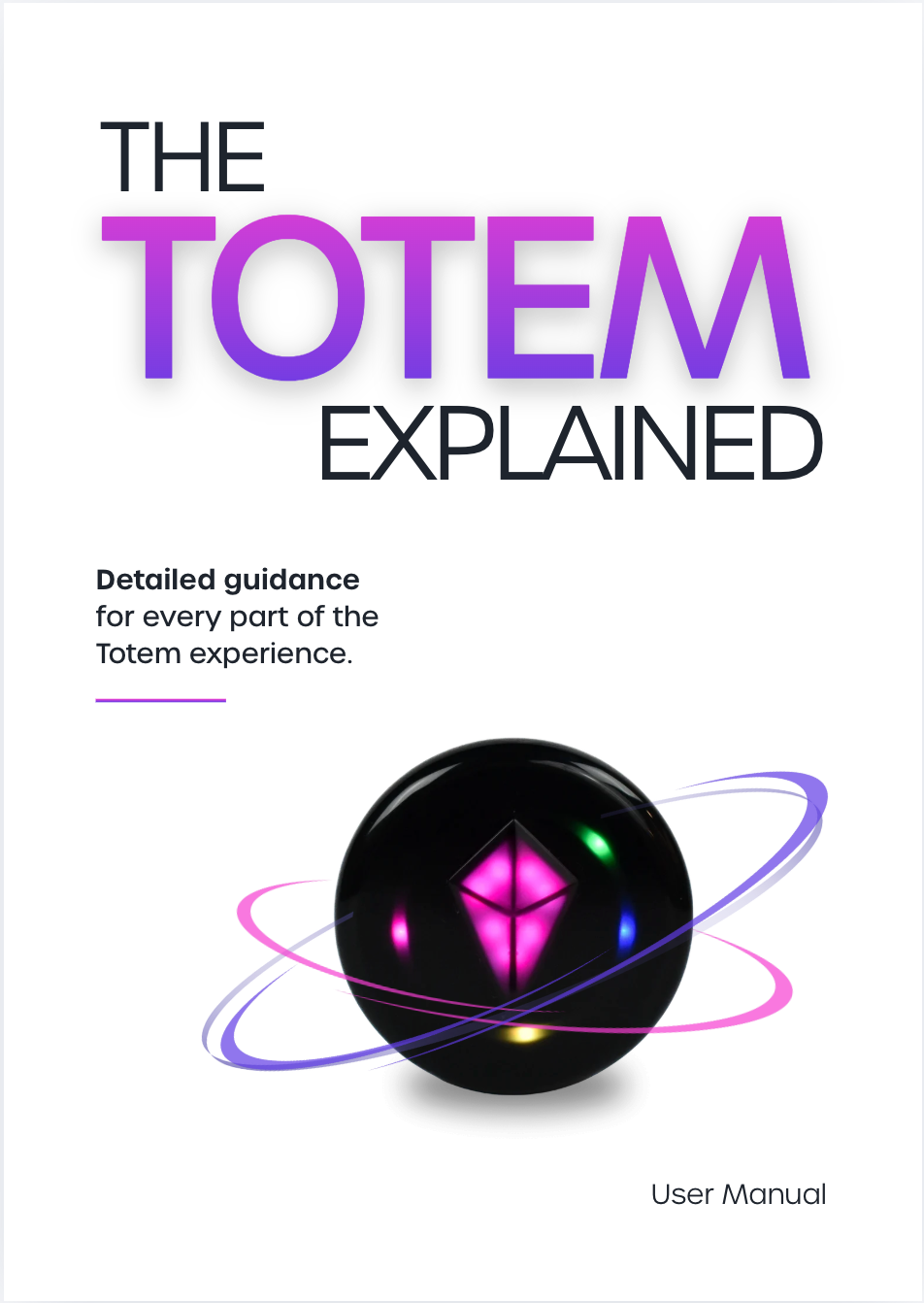
Meet the Totem Compass
The Totem Compass helps you find your people and stay connected wherever the adventure takes you.
How this manual is organized:
- Setup & Use: Product anatomy, The Essentials, Understanding the Lights, and the Totem App
- Support: Troubleshooting, Care & Maintenance
- Reference: Product Specs, Regulatory & Safety, Warranty & Support
Each section stands on its own, so you can read start to finish or jump straight to what you need.
Looking for a faster path to setup?
Start with the Totem Playbook. It will teach you the basics quickly.
Your Totem Compass

What's Included?
One (1) Totem Compass
Two (2) Elastic Lanyards
One (1) USB-C Charging Cable
Product Anatomy
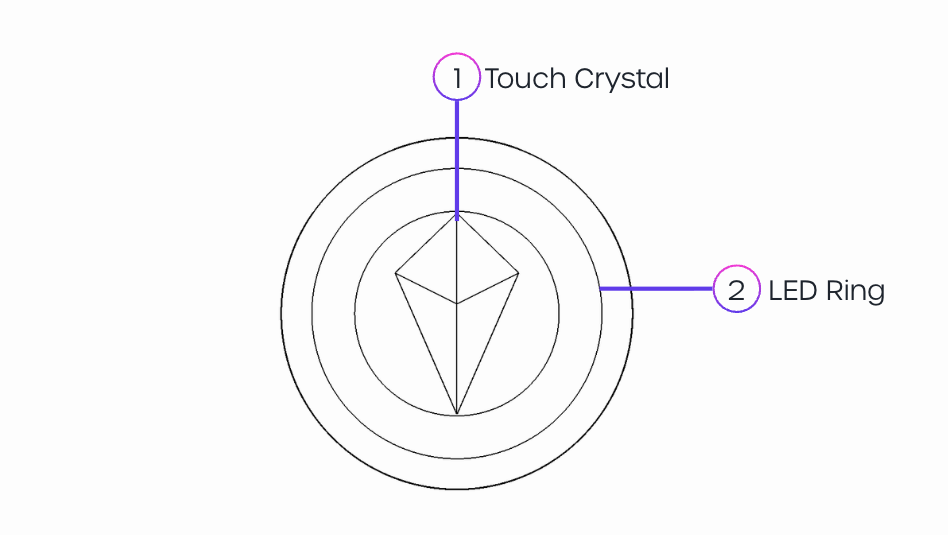
Front View
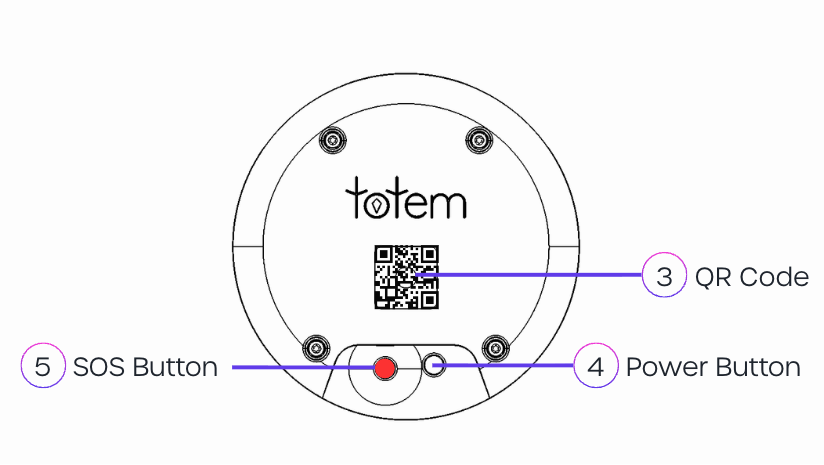
Back View
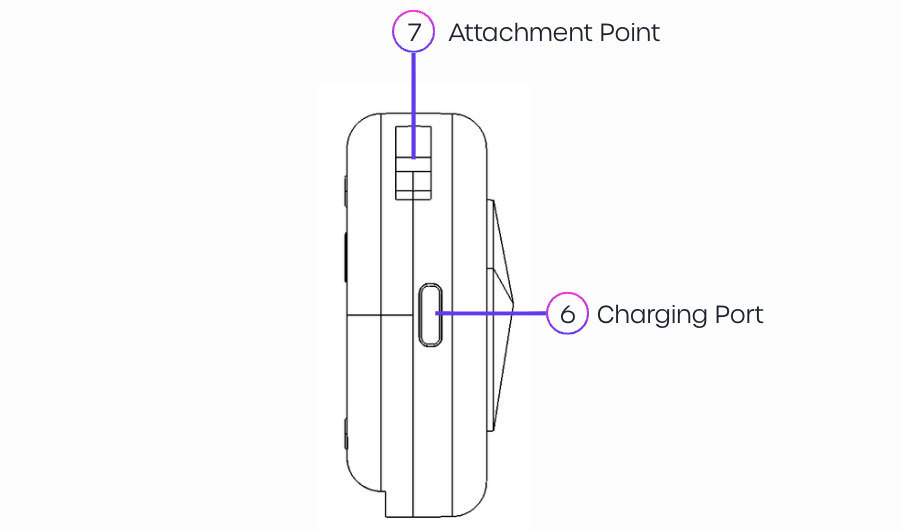
Side View
1. Touch Crystal
2. LED Ring
3. QR Code
4. Power Button
5. SOS Button
6. Charging Port
7. Attachment Point
Two Ways to Hold Your Totem
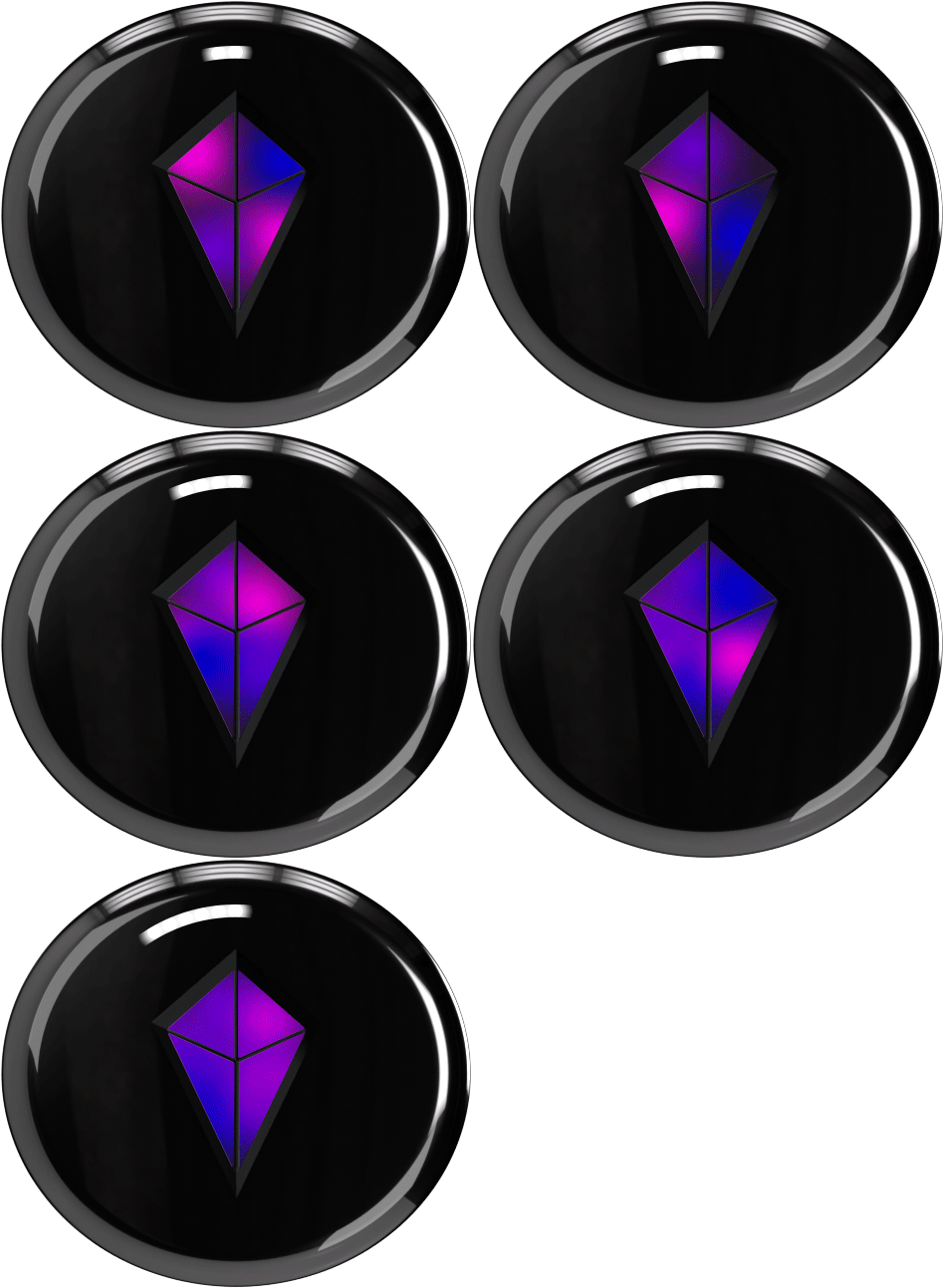
What you see on the Totem changes depending on how you're holding it.
Vertical
Vibe Mode
Sound Reacts
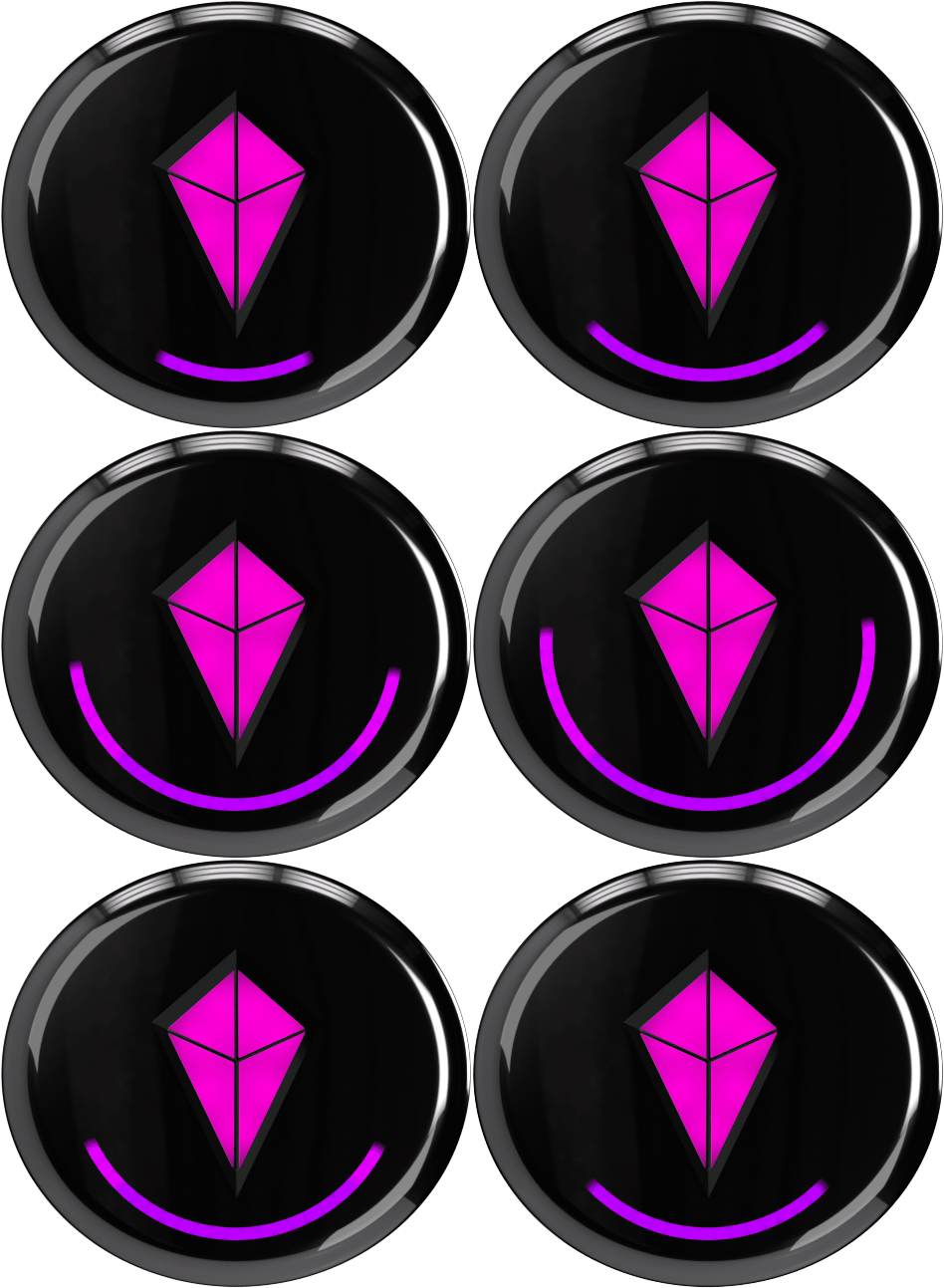
Vibe Mode
Sound Reacts
Eco Mode
No Sound React
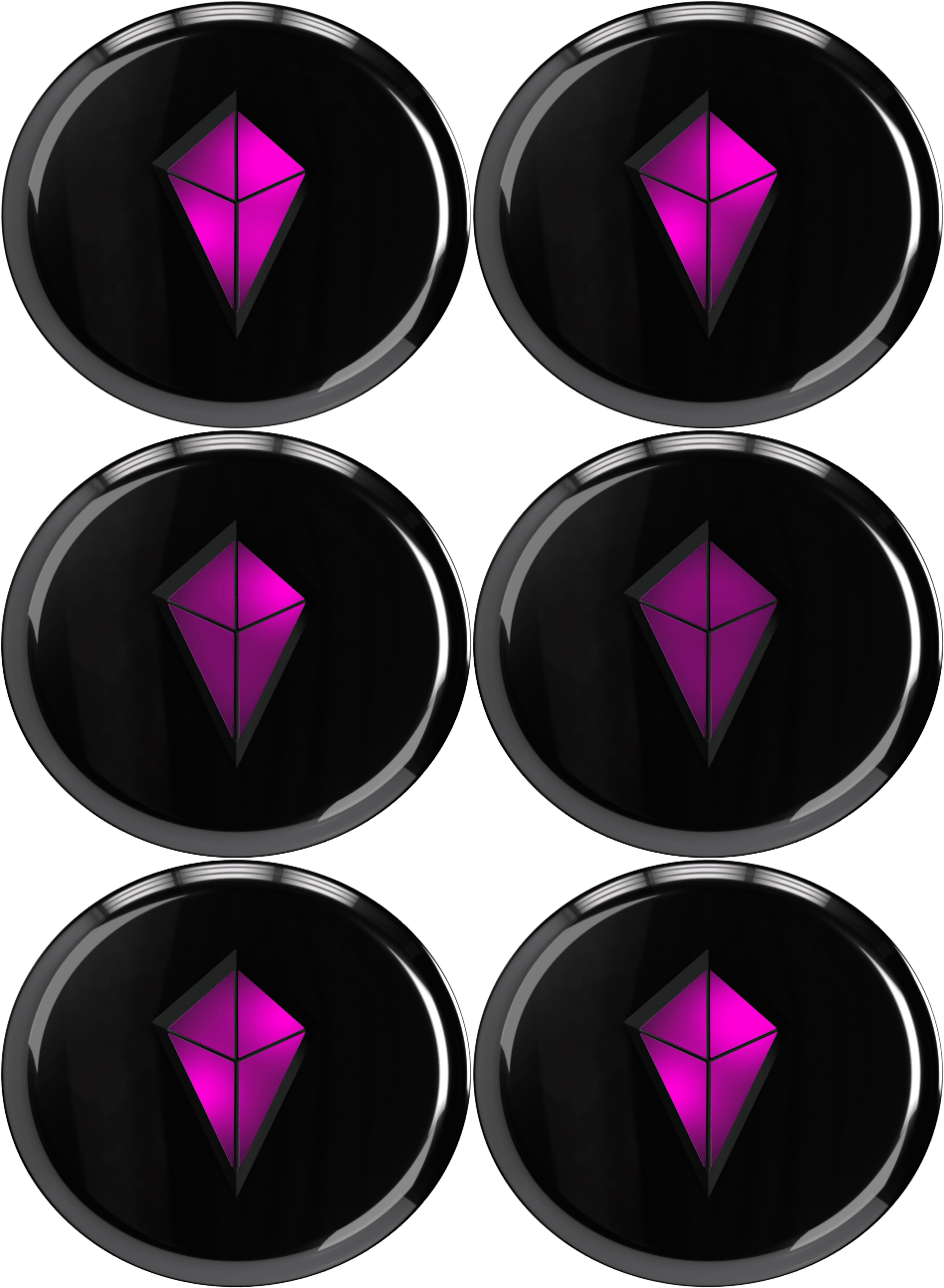
Eco Mode
No Sound React
Horizontal
Compass Mode
Navigation
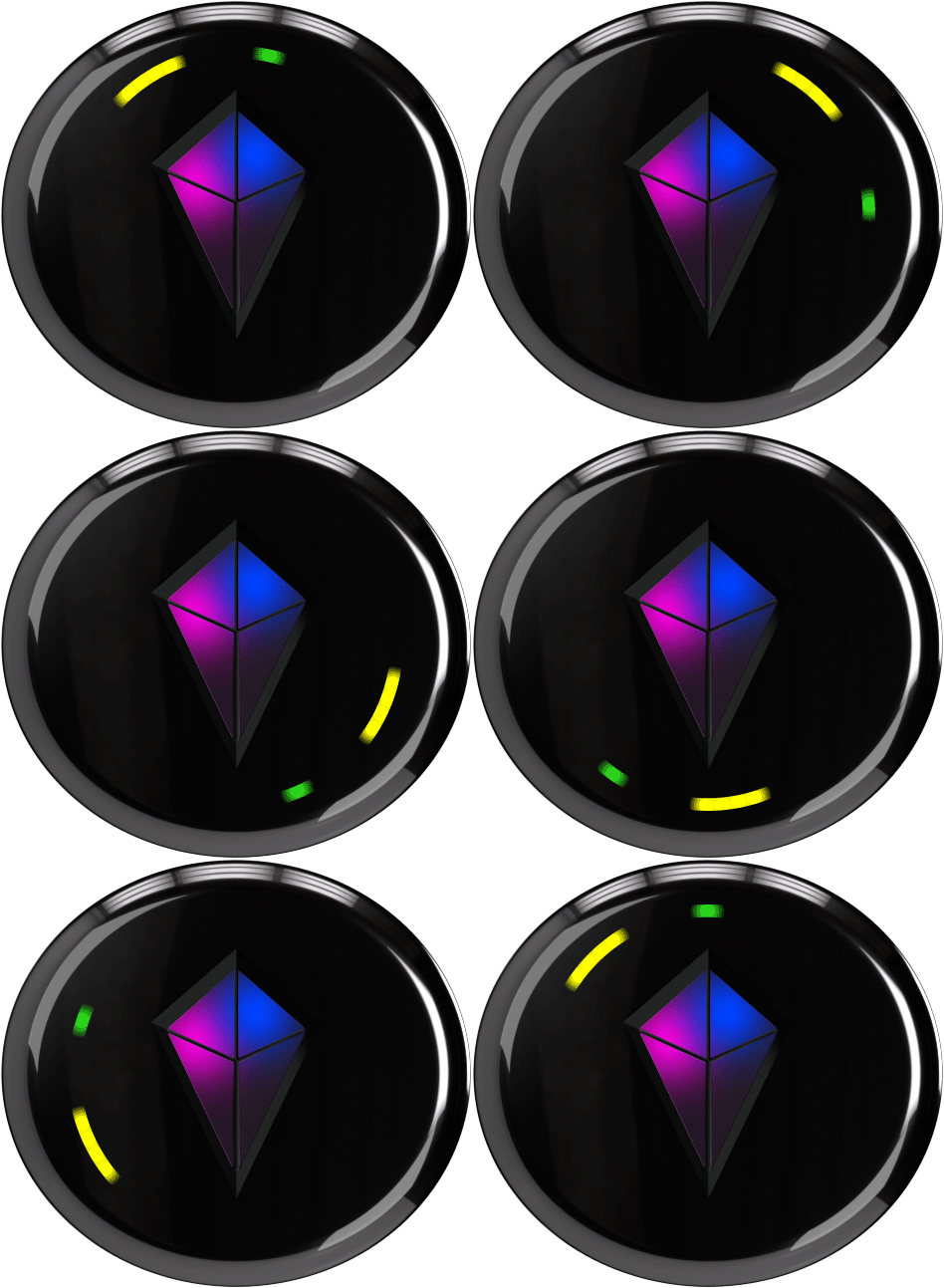
Compass Mode
Navigation
The colors shown belong to your Bonds.
Each color points toward the friend it belongs to.
Light behaviors and details are provided in Section 3.
Get Ready to Navigate
The Four Essentials
To find your friends, your Totem needs these four things.
1. Battery Power
2. A Friend to Find
3. Satellite Connection
4. Calibration
The following sections will teach you everything you need to complete all four with confidence & ease.
1. Battery & Charging
How to Check Battery Level
- Turn Totem on by clicking the Power Button once.
- Battery level is shown as a ring around the Totem.
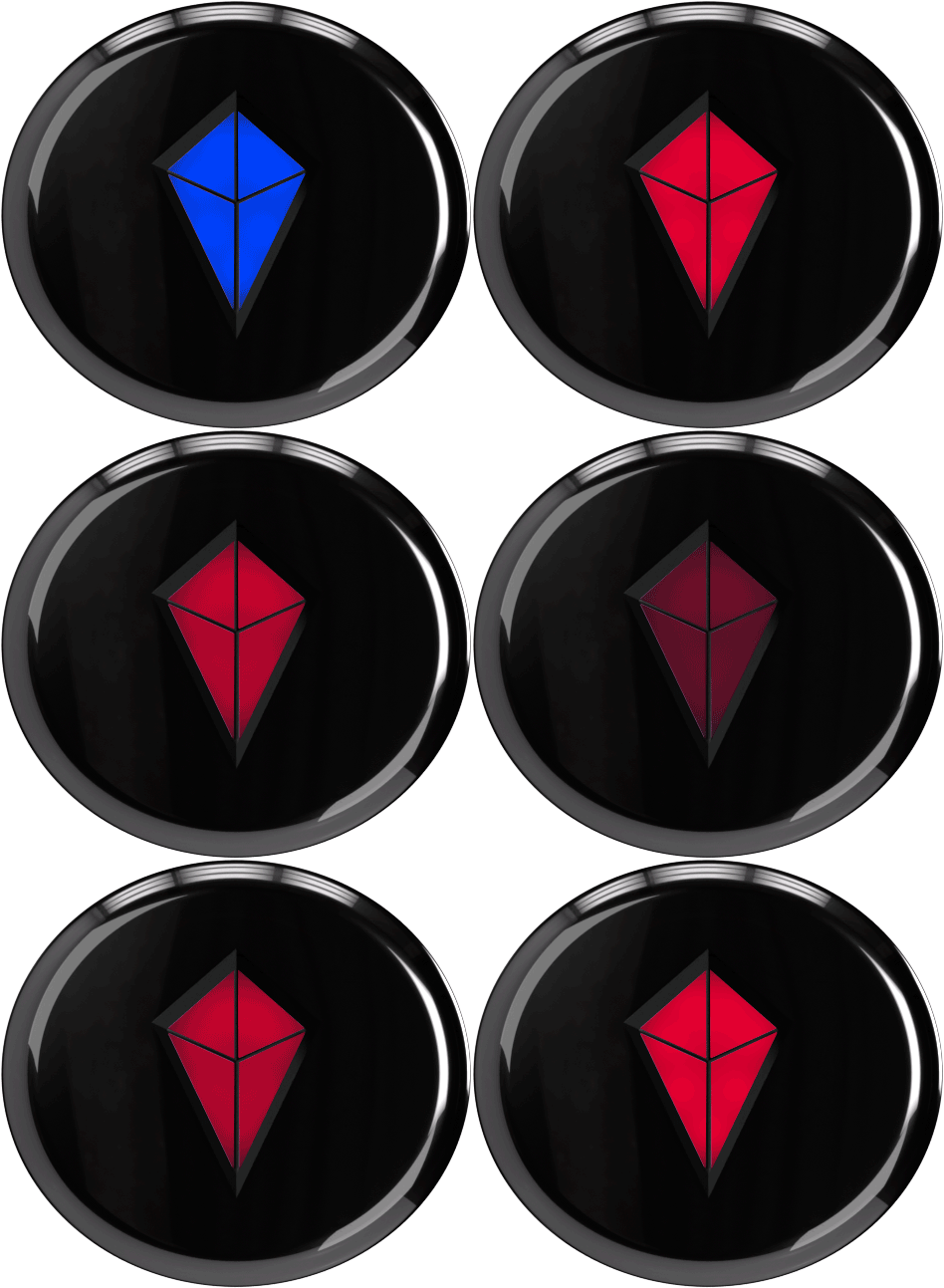
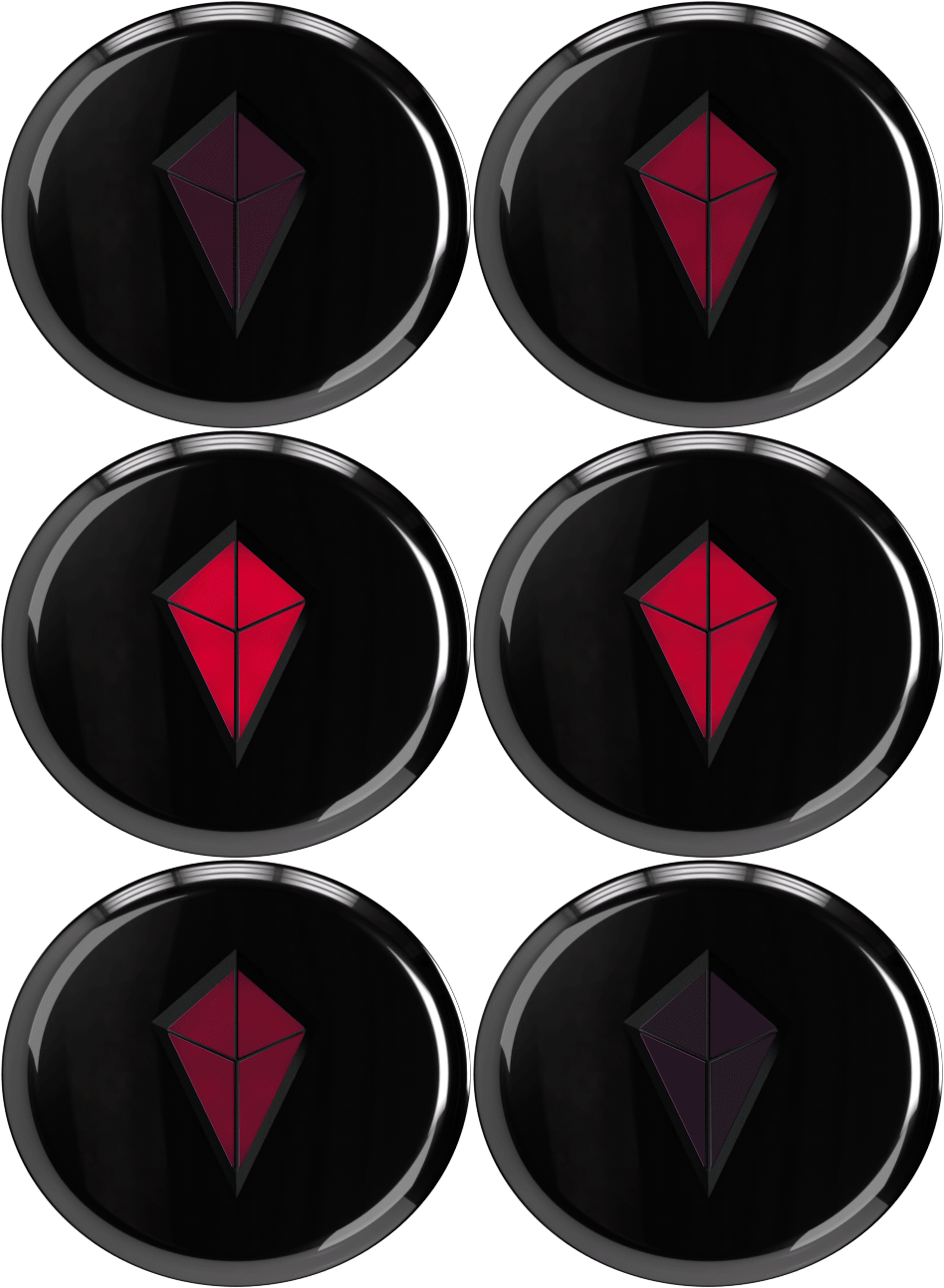
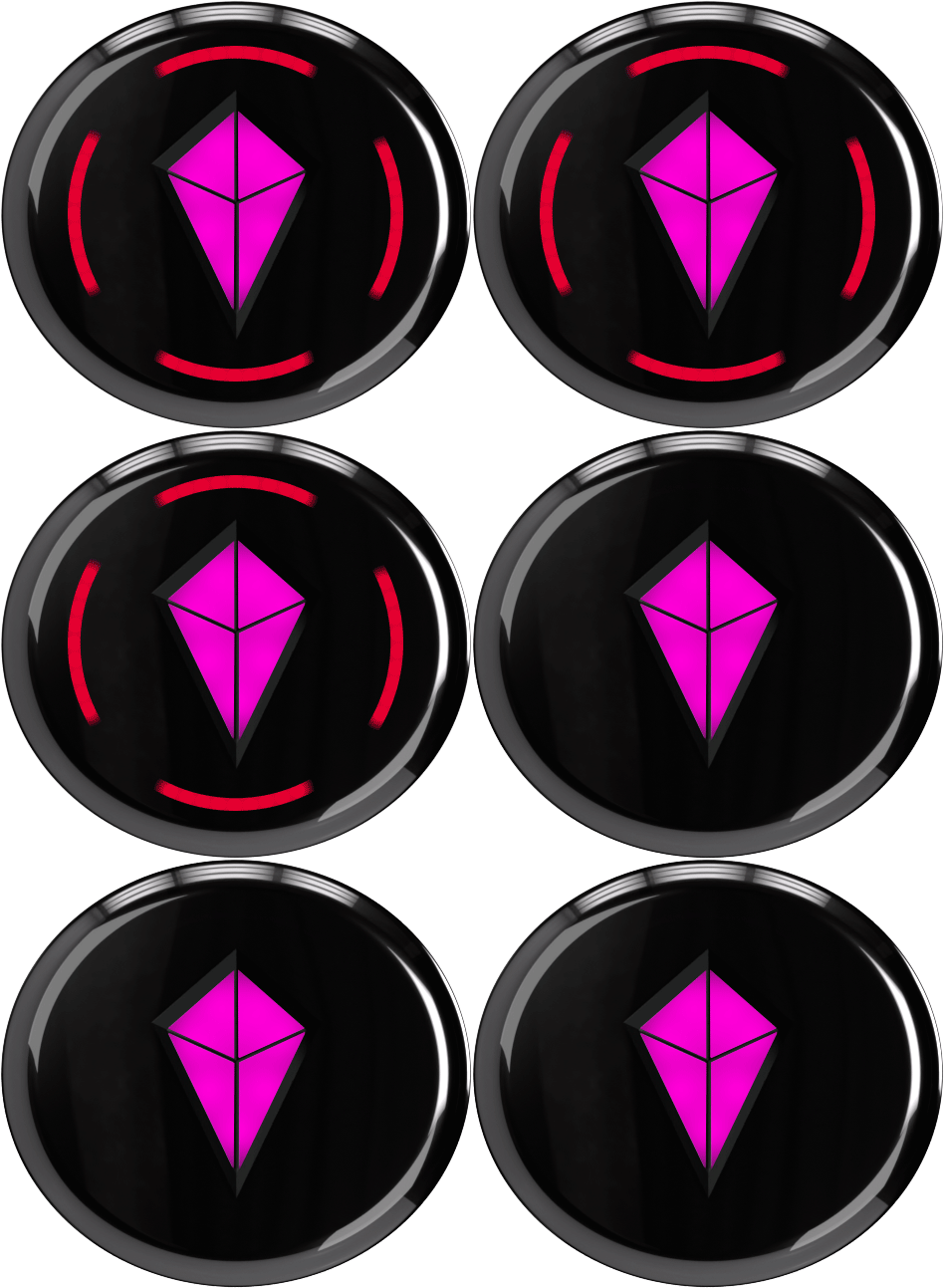
Low Battery
Red Ring
Low Battery
Red Ring
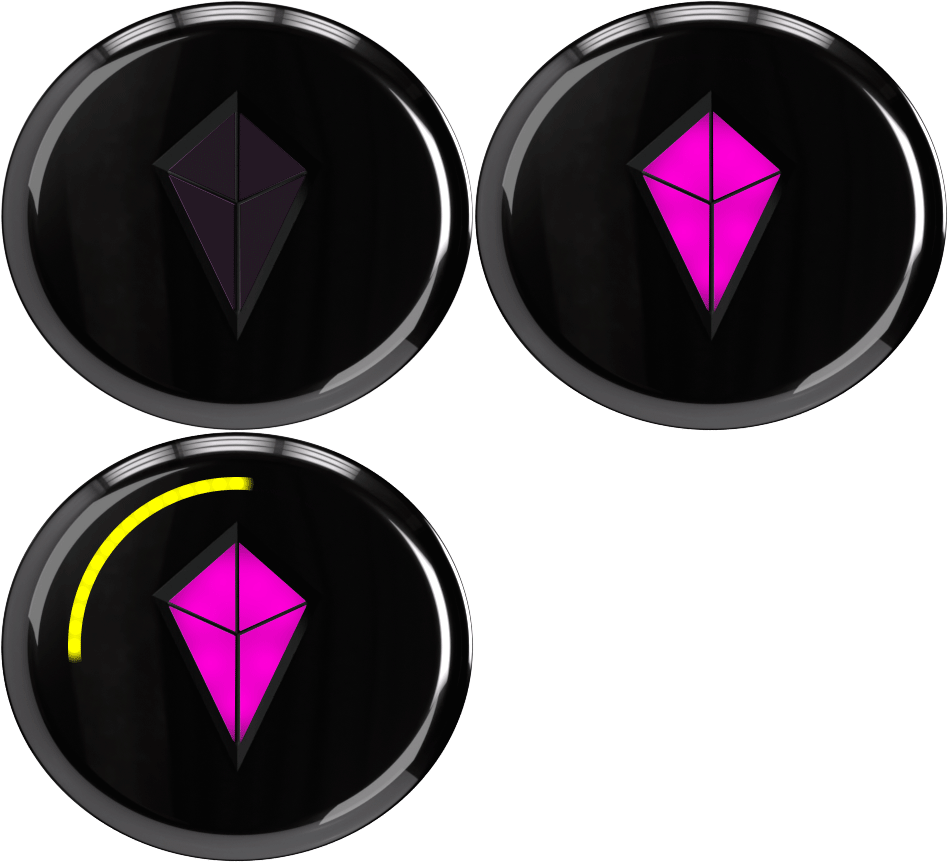
Medium Battery
Partial Yellow Ring
Medium Battery
Partial Yellow Ring
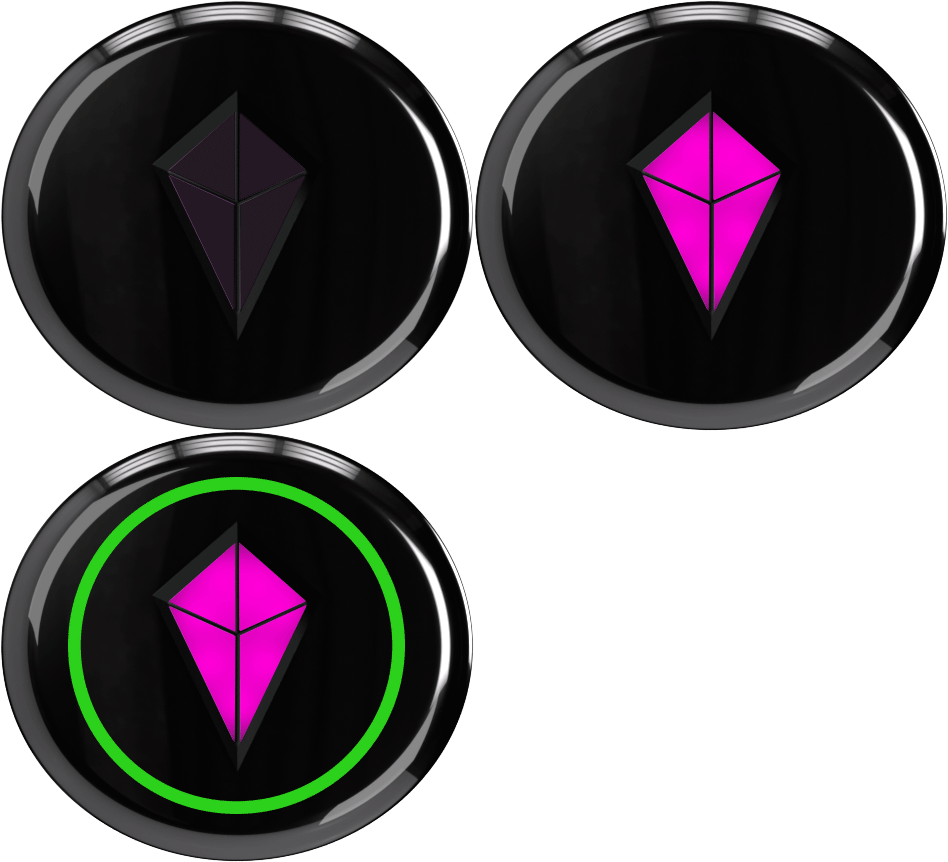
Full Battery
Full Green Ring
Full Battery
Full Green Ring
How to Know Your Totem Needs a Charge
- Touch Crystal slowly pulses red.
- Touch Crystal will not respond.
How to Charge Your Totem
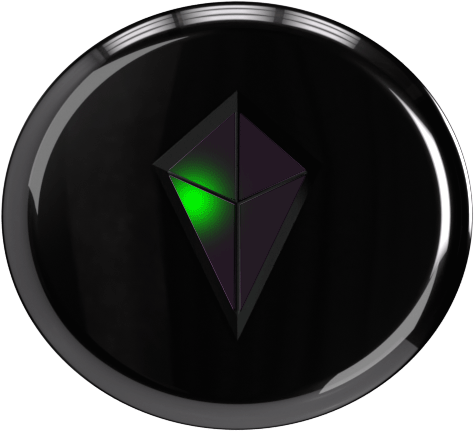
- Fully charges in ~45 minutes using standard USB-C.
- Green light appears when fully charged.
How to Maximize Battery Life
- Click the Power Button once to enter Eco Mode.
- Touch Crystal dims. All other lights disappear.
Full Brightness
Vibe Mode*
(6-8 hours)
Full Brightness
Vibe Mode*
(6-8 hours)
Dim Lights, No Crystal
Eco Mode*
(22-24 hours)
Dim Lights, No Crystal
Eco Mode*
(22-24 hours)
*shown when hanging vertically
Ready to Vibe again? Click the Power Button once.
2. Bonding
What is a Bond?
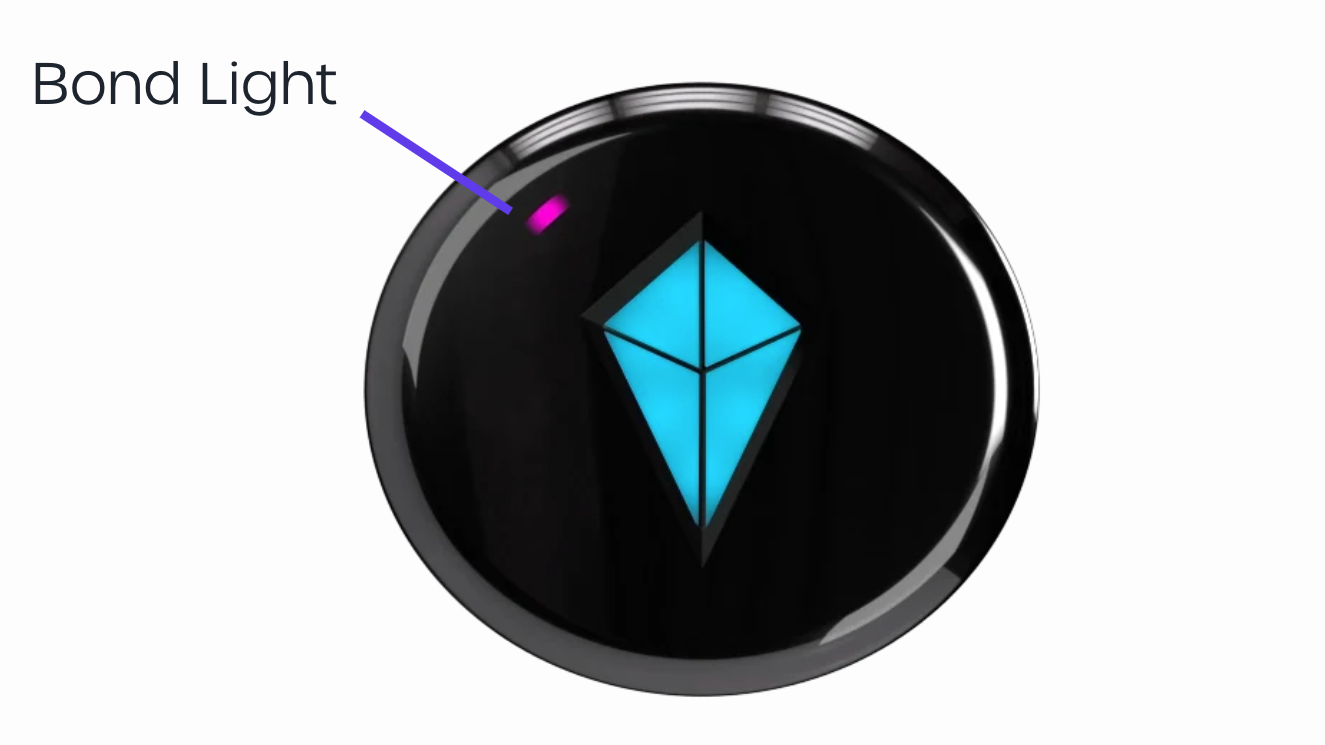
A Bond is a person or waypoint that your Totem can find.
Waypoints can be added using the Totem Compass App, which is covered
in Section 4.
Your Totem can support
up to eight Bonds.
Each Bond is assigned a dedicated color on your Compass.
Bonds are saved automatically and remain on your Totem until they are manually removed.
How to Bond with Friends
Totems can be Bonded in two ways.
Both methods create the same connection between devices, but they differ in how the group is formed and how Bond colors are assigned.
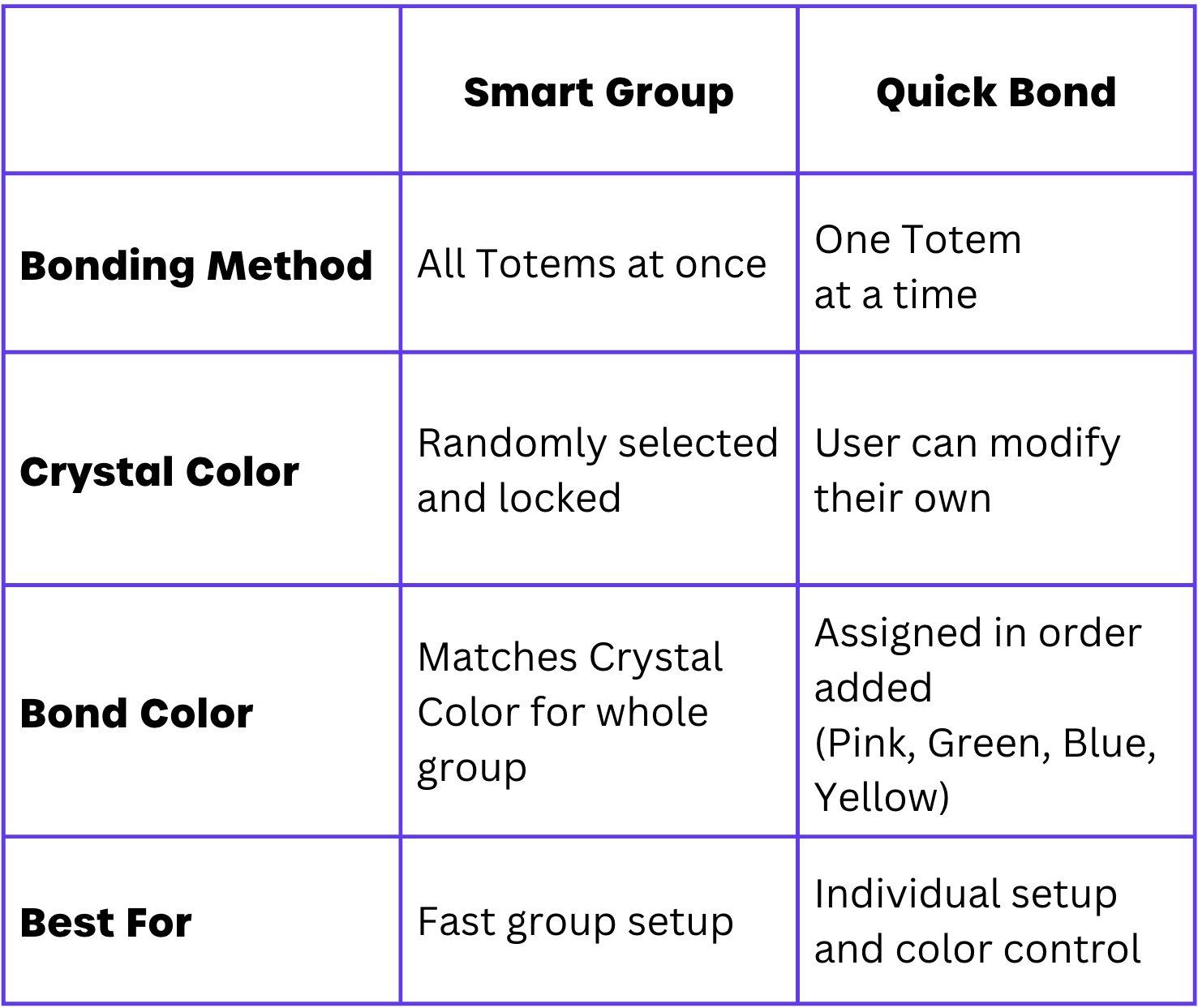
How to Bond with Friends: Smart Group
1. Get everyone together
- Hold or place all Totems side-by-side horizontally.
2. Pick a leader
- Choose one Totem to be the Primary Totem.
3. Begin Bonding
- Touch & hold the Primary Totem’s Touch Crystal for 8 seconds until the ring begins flashing through colors.
4. Add the rest
- Repeat for each remaining Totem until you see the same flashing colors.
5. Lock it in!
- Touch & hold the Primary Totem’s Touch Crystal one final time to finish Bonding.
Bond Successful?




- Each Touch Crystal locks into place.
- Each Touch Crystal displays its own unique color.

- All Bond lights move to the Touch Crystal until you move away from your friend.
Bond Unsuccessful?
1. Restart & Retry
- Press and hold the power button on each Totem to turn it off.
- Power all Totems back on.
- Place the Totems together and restart the Smart Group Bonding process.
2. Quick Bond
- Bond the Totems individually using the Quick Bond process on the following page.
How to Bond with Friends: Quick Bond
1. Bring two Totems together
- Hold or place side-by-side horizontally.
2. Press & hold both Touch Crystals
- Press both Touch Crystals at the same time.
- Both LED rings will show blue and slowly pulse while the Totems connect.
3. Wait for Bonding to complete
- Continue holding the Touch Crystals until the ring turns its assigned color and collapses into Crystal as a single light.
4. Add additional Totems
- Repeat the process with each Totem you want to add.
Bond Successful?
- LED ring will turn its assigned color and disappear as a single light in the Touch Crystal.
- All Bond lights move to the Touch Crystal until you move away from your friend.
3. Connect to Satellites
How does my Totem connect to satellites?
Once powered on, your Totem automatically begins searching for satellites.
For the fastest connection:
- Move outdoors.
- Keep a clear view of the sky.
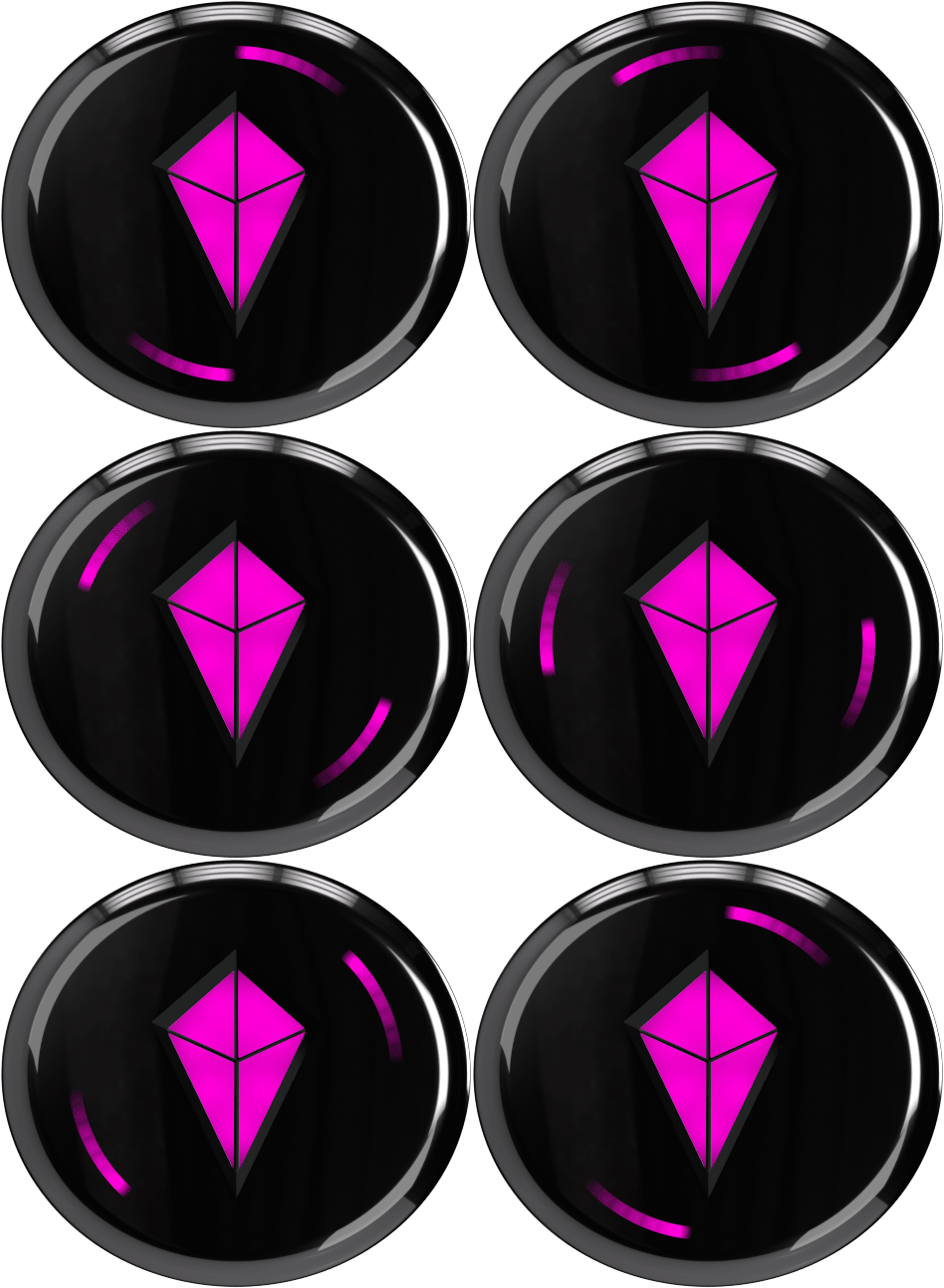
When horizontal, the swirling light indicates that your Totem is still searching.
- Swirling lights grow to show progress.
- When the swirl stops, satellite connection is complete.
Satellite connection usually takes less than 5 minutes, but may take up to 15 minutes.
Swirling?
Searching for Satellites
Swirling?
Searching for Satellites

No Swirling?
Connected!
No Swirling?
Connected!
Still Swirling After 15 Minutes?
Reach out to our team.
You might need a replacement!
4. Spin to Calibrate
Calibrate by Navigating
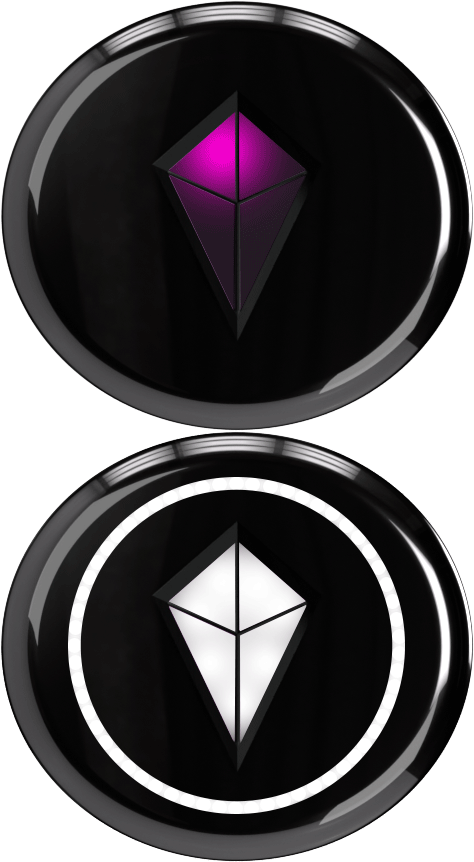
Calibration ensures your Totem can point you in the right direction.
Complete before navigating each time.
To Calibrate:
- Hold your Totem horizontally.
- Spin slowly until you see a bright, white flash.
Once the flash appears, calibration is complete.
Additional Functions
SOS Alerts
Sending an SOS silently alerts your bonded friends that you need them to come find you.
To send an SOS alert:
- Press & hold the red recessed button on the back of your Totem.
The area surrounding the button will begin blinking red, confirming that the SOS alert is active.
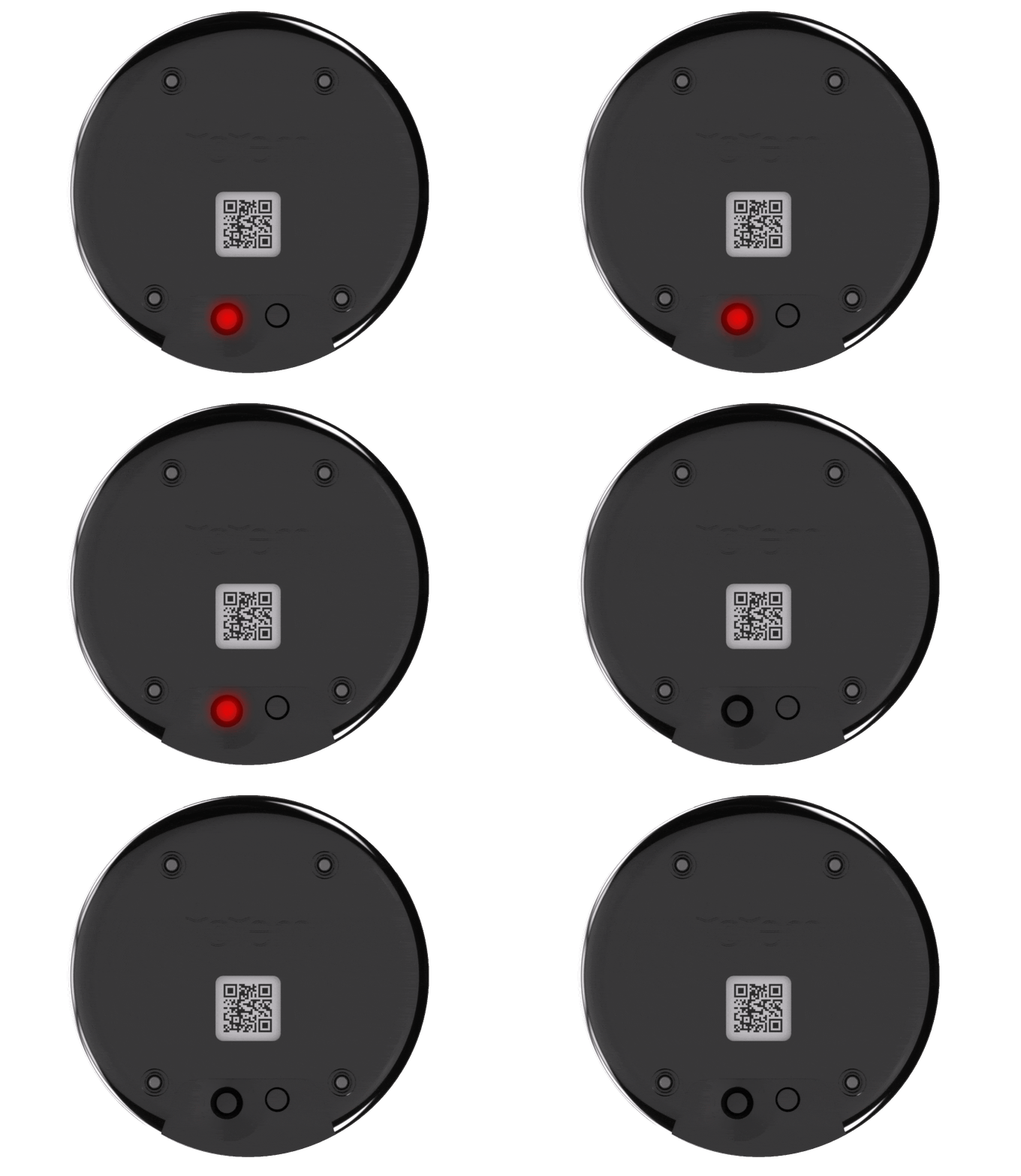
Your dedicated Bond light on your friends’ Totems will begin blinking, signaling that they should navigate toward you.
Remove Bonds
The Totem Compass is not hard-paired, meaning you can modify your Bonds at any time.
To remove a Bond:
1. Hold your Totem horizontally.
2. Triple tap the Touch Crystal.
- LED ring will show a color
3. Pick the Bond you want to remove.
- Single tap Touch Crystal to cycle through colors.
4. Remove selected Bond.
- Press and hold Touch Crystal
- Colored ring disappears
How Your Totem Communicates
The Totem's Language
The Totem speaks a language of light & color and it’s always talking to you.
To find your friends, you’ll need to understand the following aspects of the Bond lights you see.
1. Light Placement
2. Light Behavior
3. Light Size
The following sections will teach you how to read your Totem’s lights and confidently navigate to your Bonds.
Light Placement
Where a Bond light appears on the Totem tells you location status.
Bond Lights in Crystal
Nearby or Unknown
Bond Lights in Crystal
Nearby or Unknown
Bond Lights on Ring
Ready to Find
Bond Lights on Ring
Ready to Find
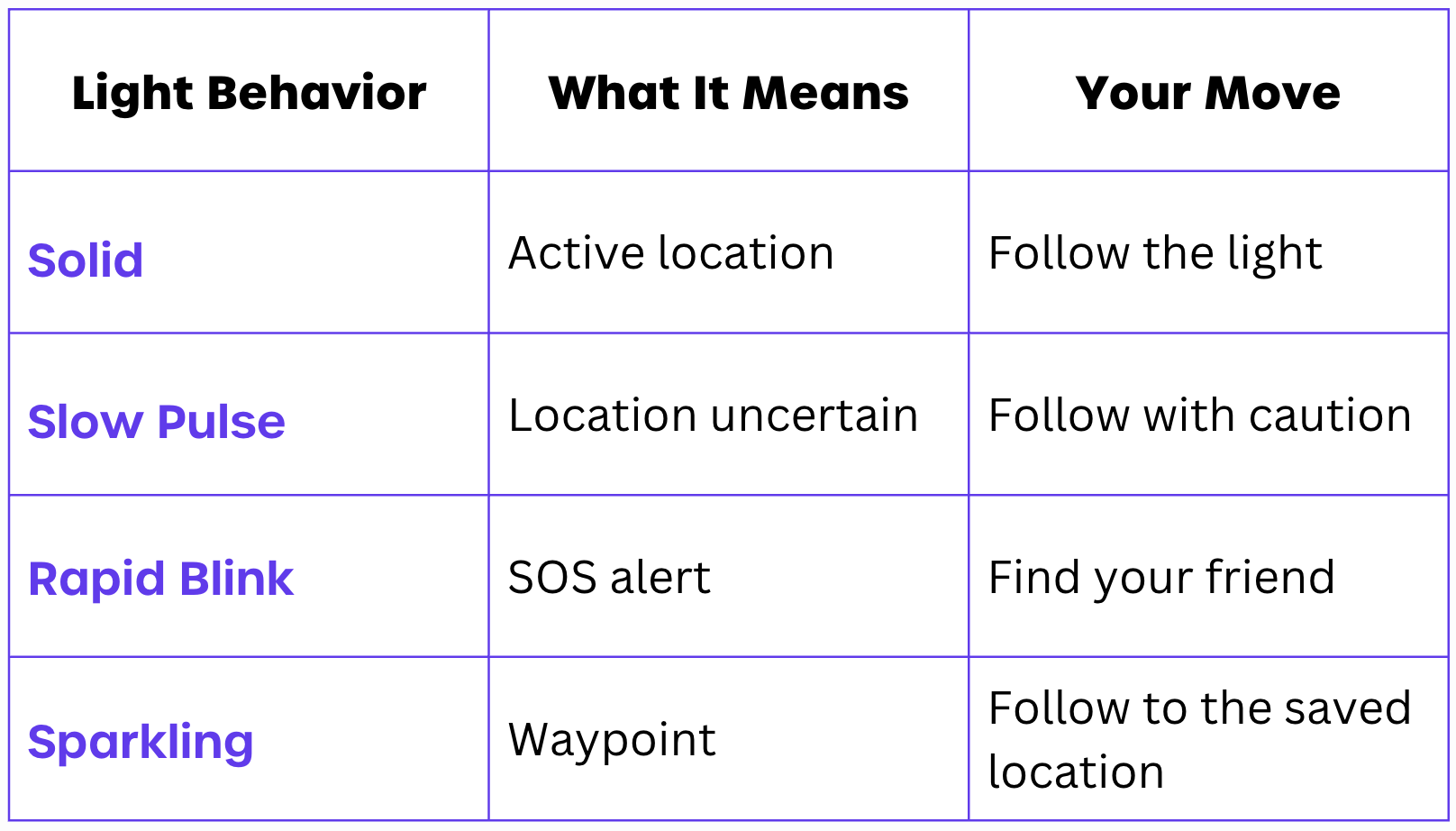
Light Behavior
Before following a friend’s light, check whether it is solid, pulsing, blinking, or sparkling.
Light Size
The light gets bigger as you move closer to your Bond.
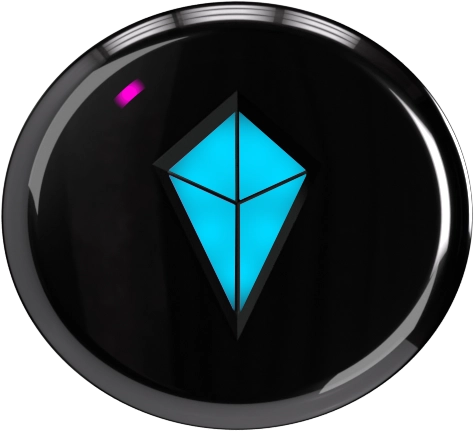
Small Light
Far Away
Small Light
Far Away
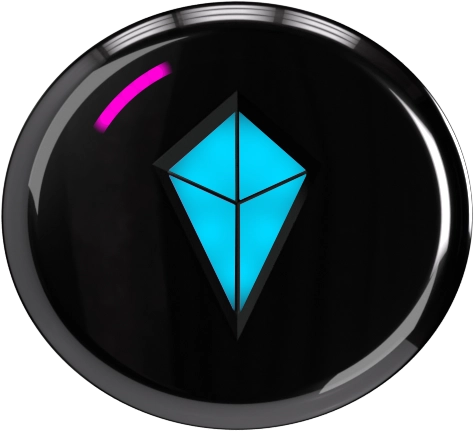
Bigger Light
Getting Closer
Bigger Light
Getting Closer
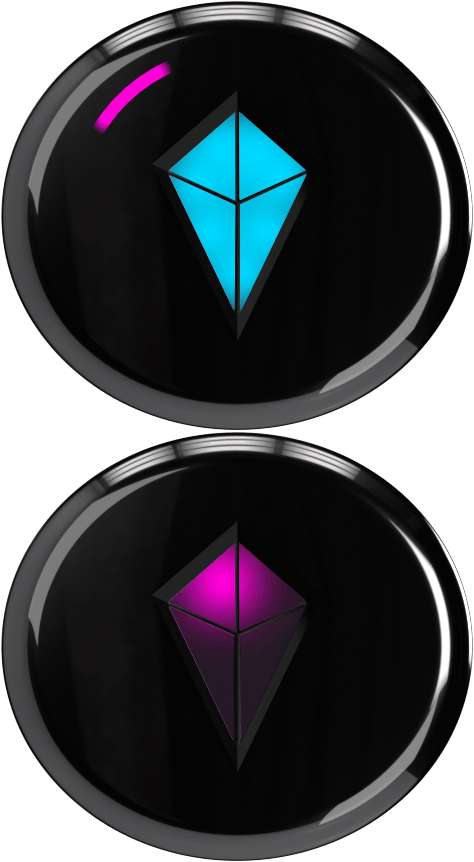
Light Moves to Crystal
Nearby!
Light Moves to Crystal
Nearby!
The Totem App
The Totem Compass App enhances your experience with the Totem Compass.
No account creation, no login, and no internet required.*
Download the app and benefit from the following features:
1. One-tap Software Updates
2. Bond Management
3. Totem Maps & Waypoints
4. Extended Range
*Internet connection required to download the App, as well as pre-download Software Updates and Event Maps.
Download Here
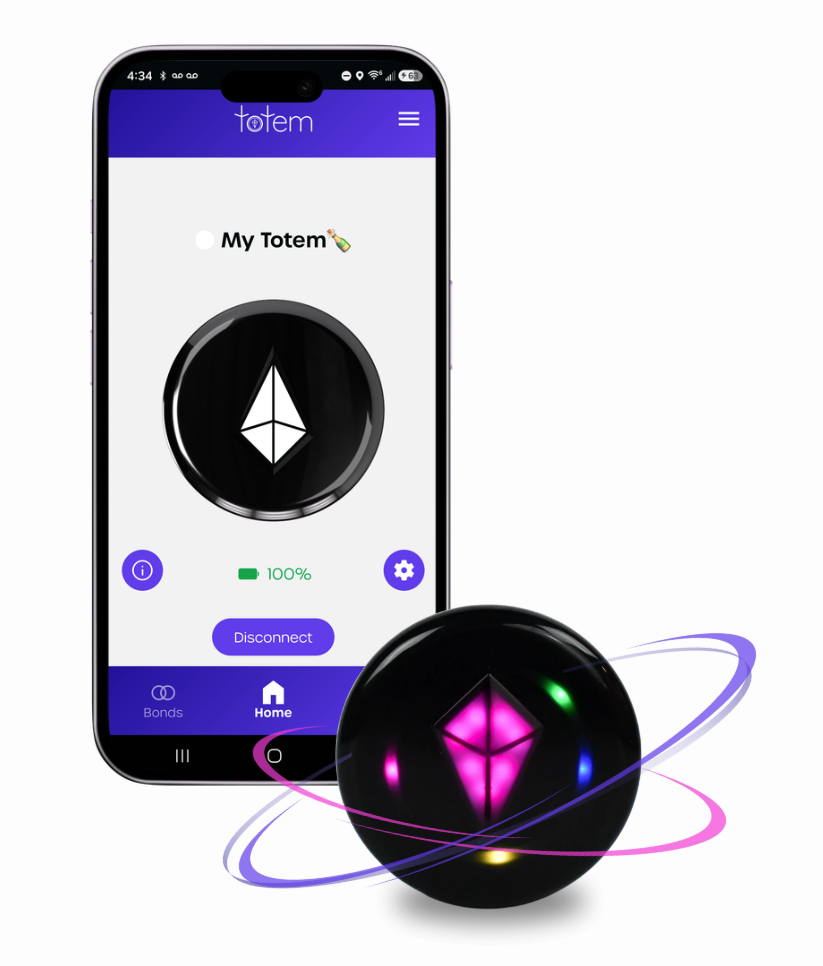
Update Your Totem
Choose Your Update Method
Updating your Totem before each event will ensure your Totem is performing at its best.
There are three ways to update your Totem, each with its own setup and benefits.
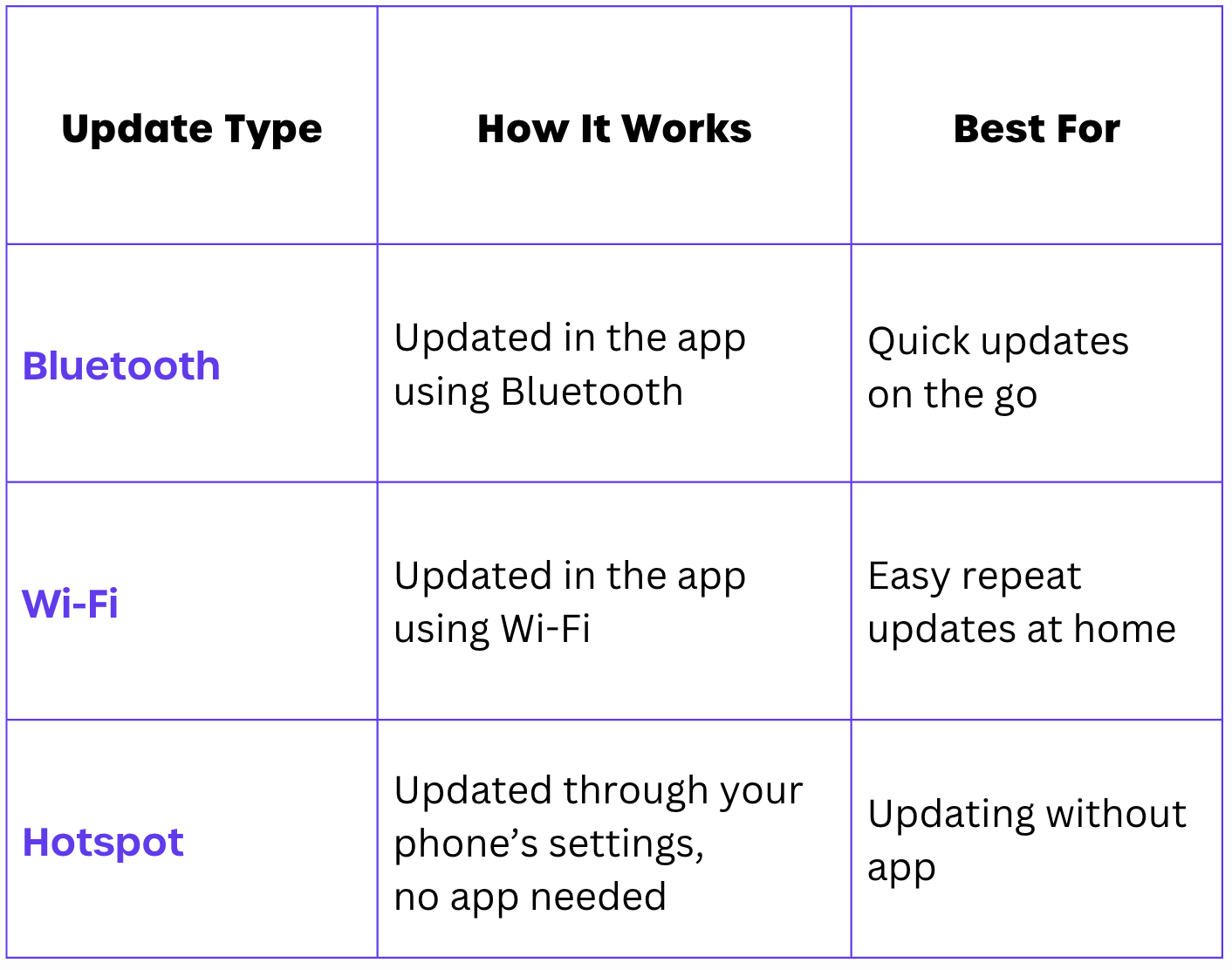
Update On the Go: Bluetooth
1. Make sure your Totem is paired to the App.
2. Open ‘Compass Settings’.
- Click ‘Settings’ Icon.
3. Select ‘Firmware Update’.
4. Select ‘Update with Bluetooth’.
5. Tap ‘Send to Compass’.
Update at Home: Wi-Fi
1. Make sure your Totem is paired to the App.
2. Open ‘Compass Settings’.
- Click ‘Settings’ Icon.
3. Select ‘Wi-Fi Network’.
- Choose Wi-Fi Network & add credentials.
4. Return to ‘Compass Settings’.
5. Select ‘Firmware Update’.
6. Select ‘Update with Wi-Fi’.
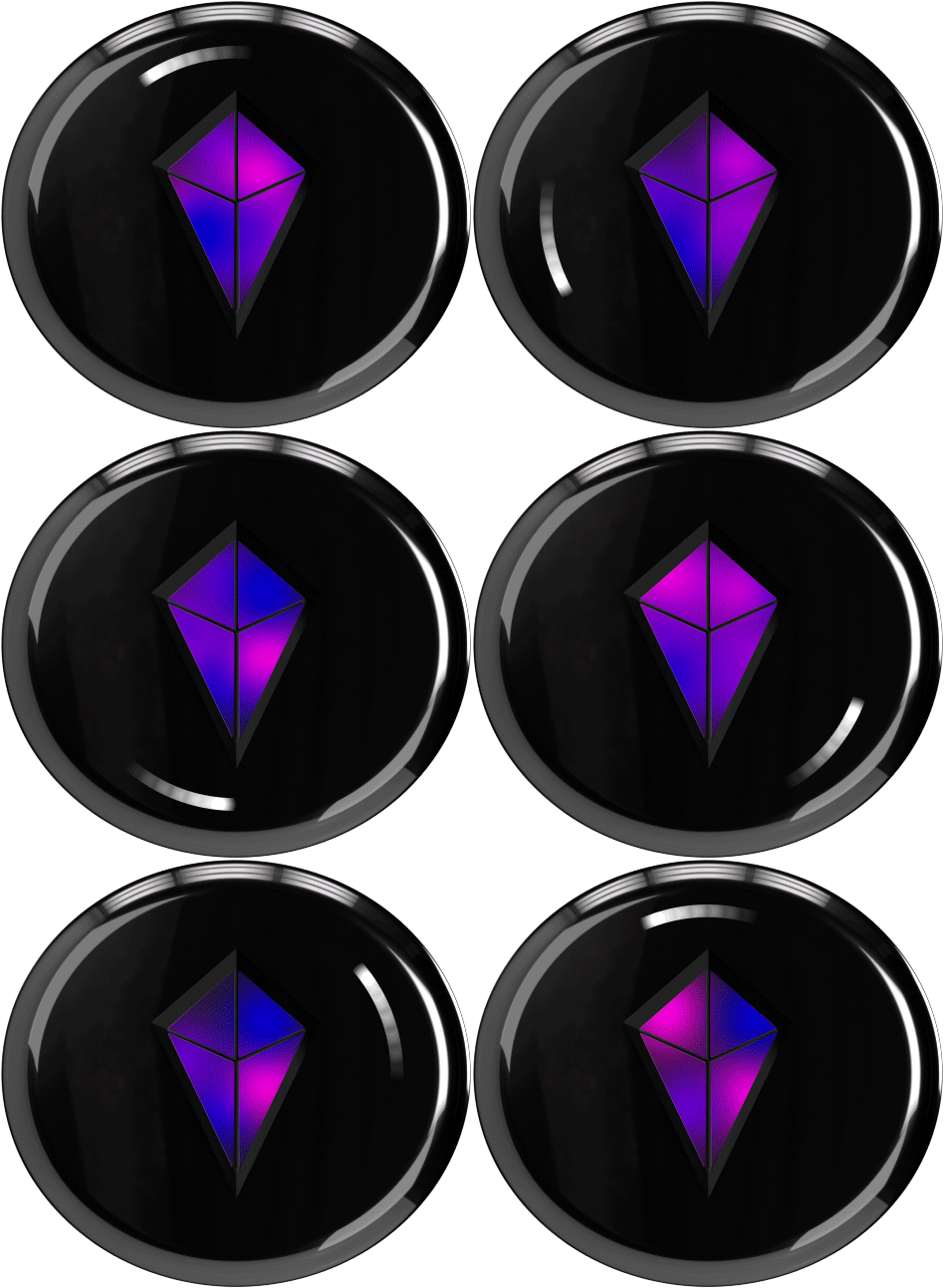
Swirling Light
Looking for Network
Swirling Light
Looking for Network
Progress Light
Installing Update
Progress Light
Installing Update
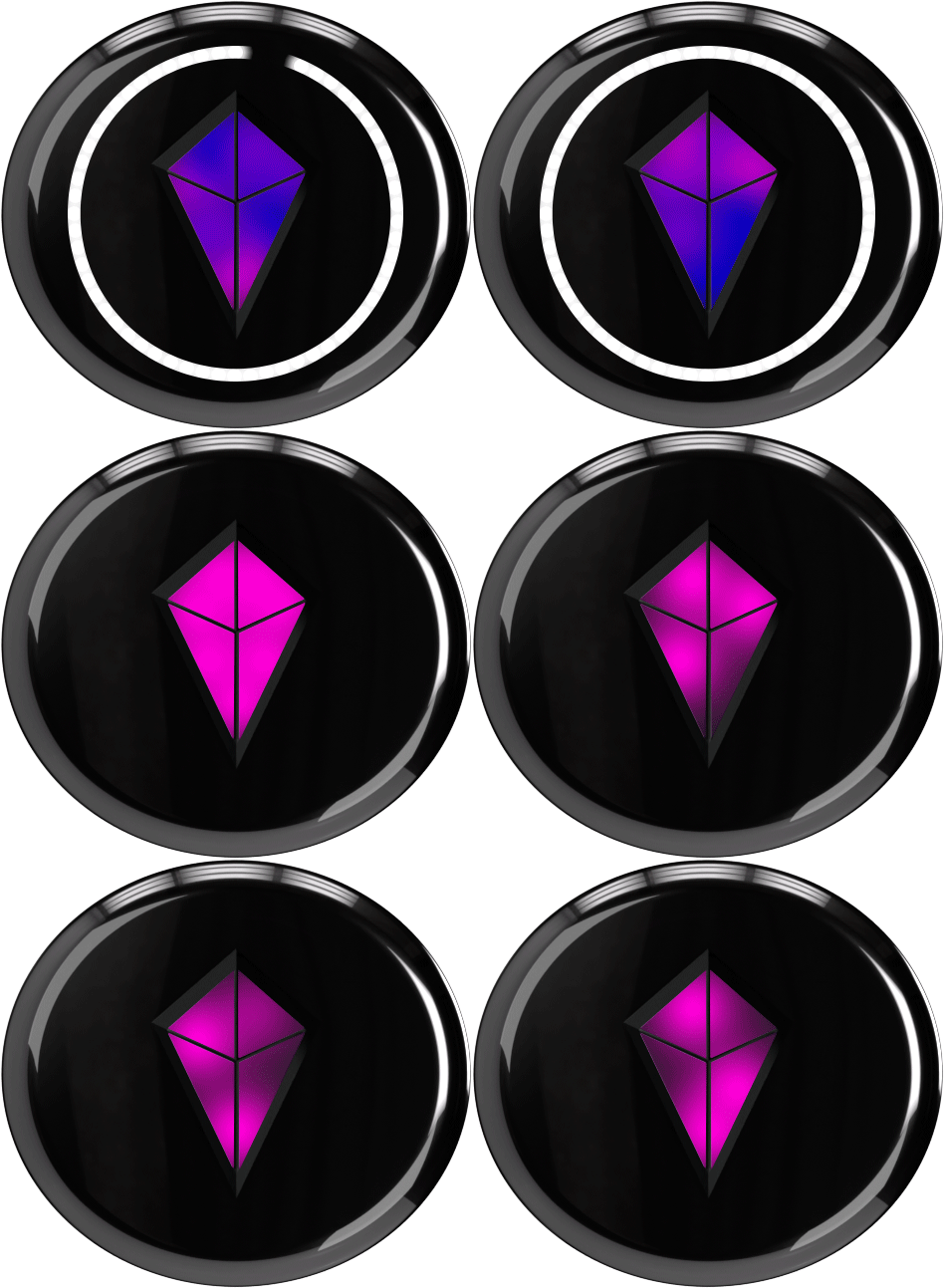
Light Fills
Update Successful
Light Fills
Update Successful
Orange Blinking?
- Use a 2.4 GHz Wi-Fi network.
- Verify your Wi-Fi password.
- Charge Totem above 50%.
- Confirm internet connection is stable.
Update Without the App: Hotspot
Before You Start:
Make sure your Totem is at least 50% charged and your Wi-Fi is off.
1. Set up your Hotspot
- Hotspot name: totemupdate
- Password: totem1234
For iPhone:
- Rename your phone to totemupdate
- Turn on Personal Hotspot
- Set the password to totem1234.
For Android:
- Turn on Mobile Hotspot
- Set the network name to totemupdate and password to totem1234.
Important:
- Use all lowercase with no spaces.
- Make sure your hotspot is using 2.4 GHz or compatibility mode.
2. Start the Update
- Turn on your Totem.
- Triple-click the SOS button.
Your Totem will restart and begin searching for the hotspot.
Once connected, a white progress light will begin filling around the Halo.
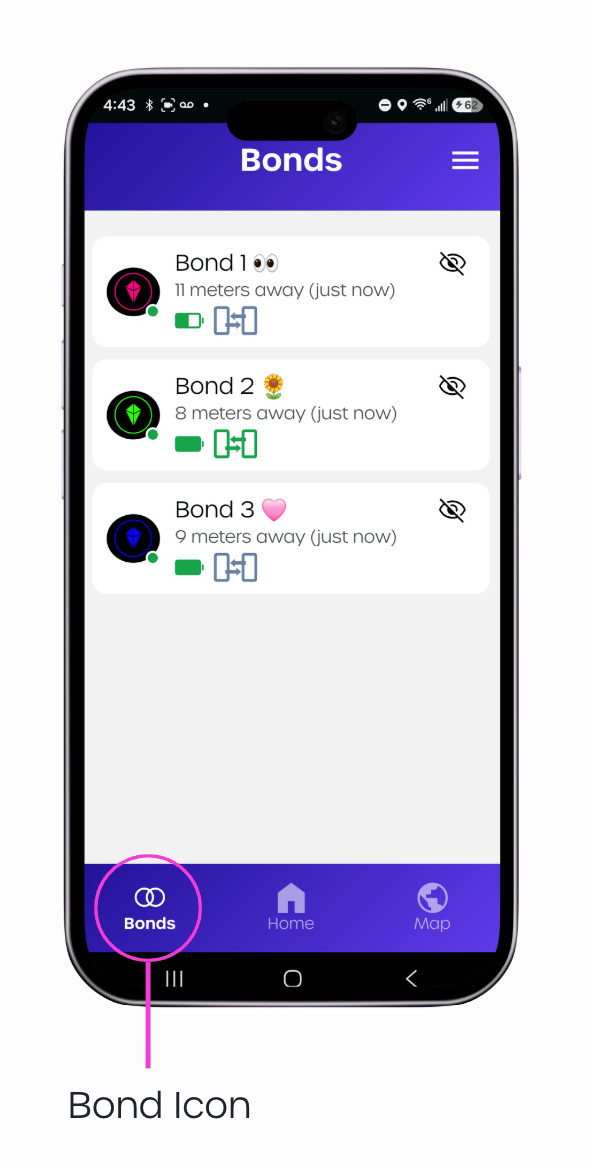
Manage Your Bonds
The Totem App gives you one place to view and manage all of your Bonds.
- Rename & Recolor
- Show or Hide
- Check Distance
Navigate Totem Maps
Use Totem Maps to see your Bonds in real time or navigate to event waypoints—all offline.
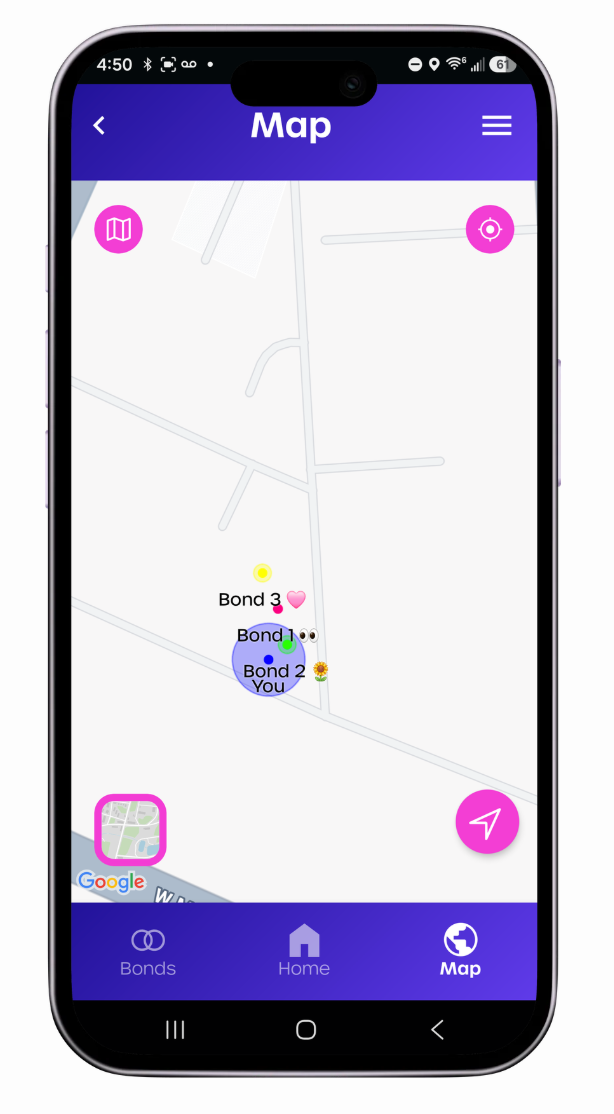
Real Time Maps
See Bonds on Map
Real Time Maps
See Bonds on Map
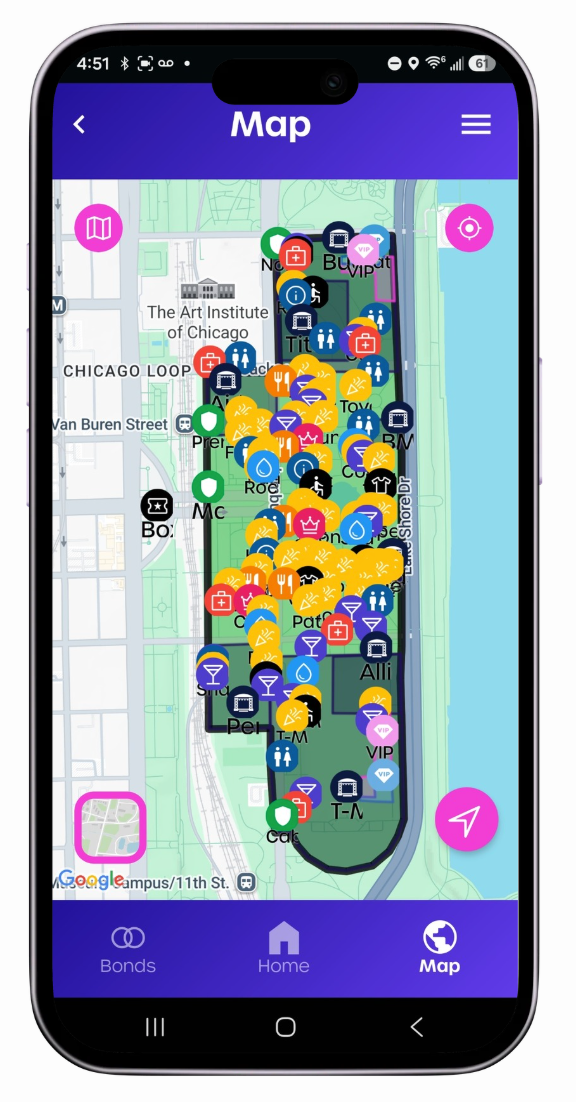
Interactive Event Maps
Navigable Waypoints
Interactive Event Maps
Navigable Waypoints
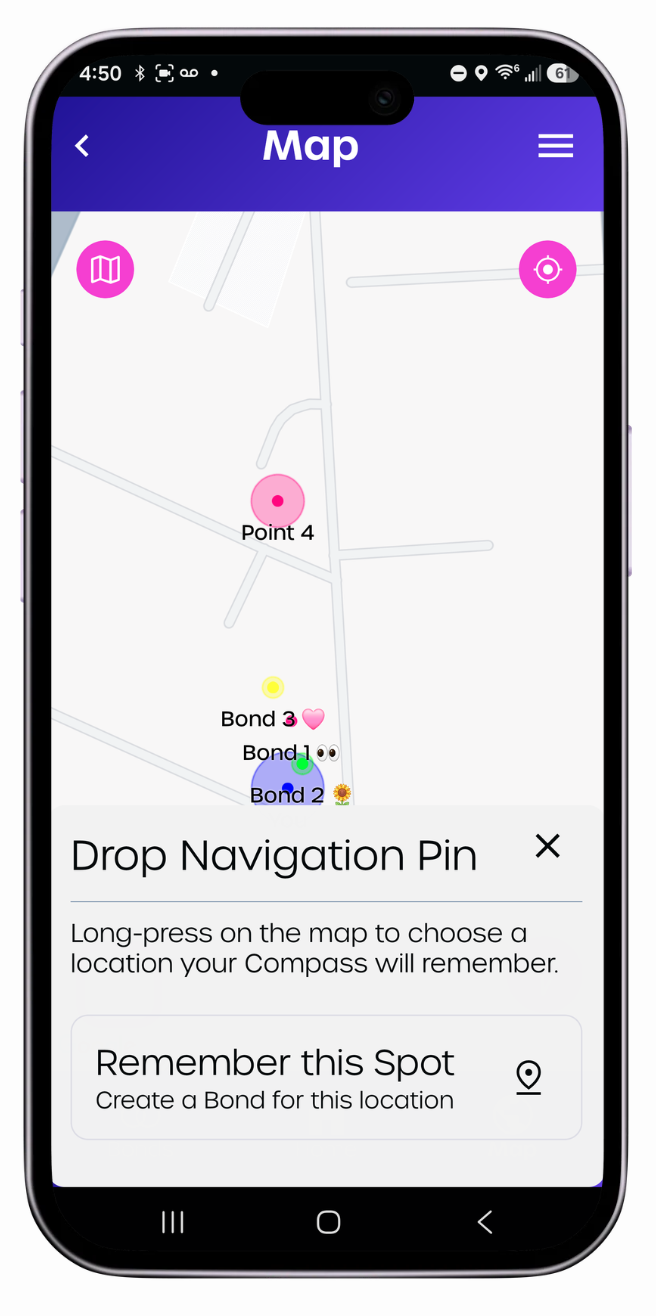
Real Time Maps
See you and your Bonds' live locations on the map at any time.
To save a custom waypoint:
- Touch & hold the map
The saved waypoint will be added to your Totem as a Bond light.
Interactive Event Maps
Navigate to any waypoint on the event map.
Maps are released based on Totem adoption. Waypoints may include:
- Restrooms
- Water stations
- Stages
- Vendors
If you’d like to request a map, please reach out to our team.
Extend Your Range
Your Totems can use mobile data to share location from beyond standard Totem range.
To experience the benefits, you and your bonded friends must be connected to the Totem App.
A grey phone icon next to your Bond’s name means they are connected
to the app.
Care & Maintenance
Handling & Storage
- Handle with care and store in a soft pouch or case when not in use
- Avoid placing the device in pockets or bags with sharp objects
Water Resistance
- The Totem Compass can withstand rain and splashes of water, but should not be submerged in water
- Dry immediately if exposed to moisture
Charging
- Ensure the charging port is free of dirt or moisture before connecting
Cleaning
- Fingerprints and smudges may appear on the surface. Use a soft, dry microfiber cloth to gently wipe the device
- For deeper cleaning, use a slightly damp cloth with water or mild soap. Avoid harsh chemicals or abrasive materials
Environmental Care
- Prolonged exposure to direct sunlight or extreme temperatures may affect battery performance and device longevity
- Keep the device away from excessive dust, sand, or debris, especially in outdoor environments
Regulatory, Legal, & Safety
Product Specs
Model: Totem Compass Gen 1
Power Adapter Charging Voltage: 5V
Max Charging Current: 1A
Battery Type: LiPo ion
Battery Capacity: 1000 mAh
Wireless Frequency/Protocol: 2.4GHz
Charging Port: USB type C
Operating Temperature: -10°-60°C / 14°-140°F
Housing Material: MABS
Size: 58x58x24 mm/ 2.28x2.28x0.95 in
Weight: 54.17g/0.119lb
Safety Features: Over-voltage and under-voltage protection to ensure safe operation within the specified voltage range. Thermal shutdown prevents the device from overheating during high-stress conditions, and the design includes safeguards to prevent damage from short circuits.
Lanyard Material: 100% polyester braided around a core of 10 natural latex threads
Lanyard Relaxed Size: 360 x 2.5 mm
Lanyard Stretched Size: 620 x 2.5 mm
USB-C Cable Type: Type A to C
USB-C Max Input: Max 2A
Operating Conditions
Use the device outdoors in open areas with a clear view of the horizon to maintain a reliable Satellite Connection.
Keep the device at least one foot away from smart phones, iron-based objects or heavy metal structures, as these can interfere with accuracy and satellite connection.
Protect from shock or hard impact.
Do not modify or disassemble.
Do not expose to open flames, submerge in water, or use underwater.
Performance Variables
The Totem Compass leverages Global Navigation Satellite Systems (GNSS) to provide accurate positioning and navigation. However, several factors can influence its performance:
- Environmental Obstructions: Physical obstructions such as dense foliage, tall buildings, or mountainous terrain can cause signal reflection or blockage, leading to multipath errors and decreased positional accuracy.
- Atmospheric Conditions: Variations in the Earth’s ionosphere, particularly during solar flares and geomagnetic storms, can disrupt GNSS signals.
- Solar Activity: Elevated solar activity can induce scintillation events in the ionosphere, degrading the quality of satellite signals. In standard GNSS receivers, mild scintillation can reduce position accuracy by several meters, while severe scintillation can cause signal loss.
- Weather Conditions: Adverse weather can have minor effects on the strength and quality of GNSS signals, potentially impacting the device’s performance.
- Electromagnetic Interference: Proximity to strong electromagnetic sources or environments with high radio frequency interference can disrupt GNSS signal reception, leading to potential inaccuracies.
Warranty
Your limited warranty starts on the date of your purchase and lasts for one year (365 days). The Warranty Period is not extended if we repair or replace a warranted product. We may change the availability of this limited warranty at our discretion, but any changes will not be retroactive.
This limited warranty covers defects in materials and workmanship in products purchased from the Website.
For more information, please visit our Terms of Sale.
Return
Except for any products designated on the Website as non-returnable, we will accept a return of undamaged products for a refund of your purchase price, less the original shipping and handling costs, provided such return is made within sixty (60) days of delivery* and provided such products are returned in their original condition and packaging.
For more information, please visit our Terms of Sale.
*Return window subject to extend based on reason for return.
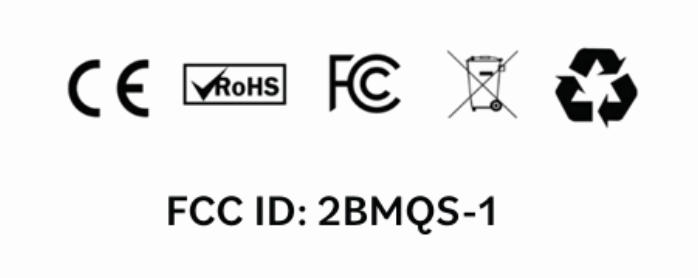
FCC Compliance
This device complies with part 15 of the FCC Rules.
Operation is subject to the following two conditions:
(1) This device may not cause harmful interference, and
(2) this device must accept any interference received, including interference that may cause undesired operation.
Changes or modifications not expressly approved by Totem could void the user’s authority to operate this equipment.
Troubleshooting & Support
General Troubleshooting
If your Totem isn’t behaving as expected, start with these quick fixes.
Update your software
- Updates can improve performance, fix bugs, and keep your Totem working as expected.
Power Cycle
- Turn your Totem off, wait a few seconds, then turn it back on.
Charge your Totem
- Your Totem enters Low Power Mode when battery level drops below 25%.
Is your Totem pointing you in the wrong direction?
Recalibrate your Totem
- Hold your Totem horizontally and spin slowly until you see a bright white flash.
Check the Bond Light
- If the light is slowly pulsing, your Totem is guiding you to your friend’s last known location, not their current location.
Check the map in the Totem App
- Open the map to see whether your friend’s location has recently updated.
Unable to update your Totem?
Reinstall the Totem App
- Delete the Totem App from your phone, then reinstall the latest version.
Pair your Totem again
- Open the app and reconnect your Totem before restarting the update.
Still unable to update?
Try a different update method or reach out to support for help.
Hardware Defects
Some issues can’t be fixed with troubleshooting and may require a replacement.
If you notice any of the following, contact our support team so we can help.
Red Ring
- A solid red ring indicates a hardware issue and your Totem needs to be replaced.
Battery Does Not Charge
- The charging port or battery may be damaged.
Tilt Not Recognized
- If your Totem does not switch between Vibe and Compass when you change its orientation, there may be an issue with the internal sensor.
Unable to Connect to Satellites
- If your Totem repeatedly cannot connect to satellites outdoors with a clear view of the sky, it may require replacement.
Questions?
We've got your back 🫶🏻
If something isn’t working the way you expected, our support team
is here to help.
Reach Us Anytime:
tribe@totemlabs.com
text us @ +1 423-522-1990