
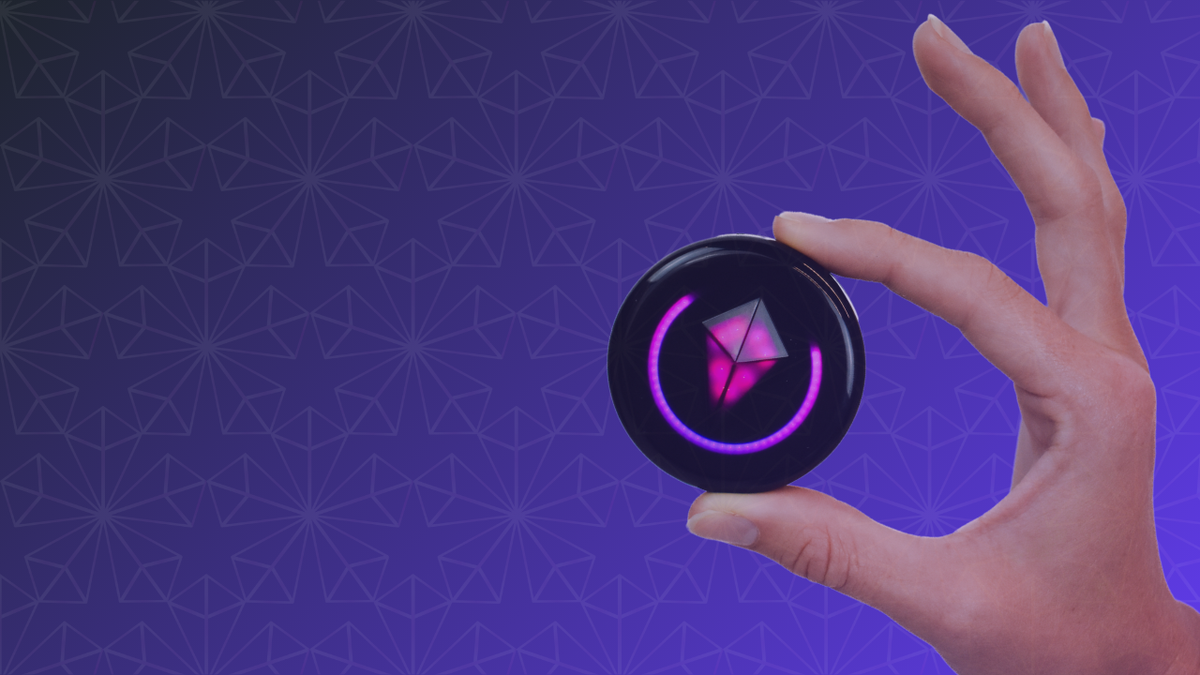
The Totem Compass has no screen. Everything you do with it runs through five parts: tilt recognition, the Touch Crystal, the Halo, the Power Button, and the SOS Button. Learn those five, and you know the whole interface.
If you're new here: the Totem Compass is a screen-free wearable that helps you find your friends without relying on cell service. Totems combine satellite positioning, a peer-to-peer radio protocol, and our Unity Mesh Network™, so you can find your friends by simply following the pretty lights.
This guide covers what each part does and how the interface works on Version 5.0, including the redesigned Vibe Mode and Auto-Calibration. For the technology underneath, see how the Totem Compass works.
The five key features of your Totem Compass user interface:
- Tilt
- Touch Crystal
- Halo
- Power Button
- SOS Button
Let's get into it!
This video tutorial was recorded before Version 5.0, so some light animations look different today.
Tilt Recognition: How Your Totem Knows What You Want
Just like your phone, your Totem Compass can tell when you pick it up. It does this through tilt recognition, using a motion sensor inside the device.
Depending on how you hold it, your Totem switches between two main modes on its own. No buttons, no menus.
Vibe Mode vs. Compass Mode
When your Totem is hanging vertically on your chest, it's in Vibe Mode. When you pick it up and hold it horizontally, it switches into Compass Mode. Some functions only happen in one mode or the other.
What Your Totem Does in Vibe Mode (Vertical)
- It sound-reacts to the music and noise around you.
- The Touch Crystal shows your own color.
- It can switch into Eco Mode to save battery.
- It can display SOS alerts.
- On Version 5.0, it quietly calibrates its heading in the background while you move around (more on that below).
Version 5.0 rebuilt major portions of Vibe Mode. It's cleaner, more stable, more dynamic, and more responsive to sound, and it's more power-efficient, too, with up to 12+ hours of battery life.
What Your Totem Does in Compass Mode (Horizontal)
Everything else, including navigation, Bonding, Bond removal, and Touch Crystal color changes, happens when your Totem is in Compass Mode. The colors you see belong to your Bonded friends (Bonds are the connections between two Totem Compasses), and each one points toward the friend it belongs to.

Vibe Mode (vertical), shown here in its pre-Version 5.0 design.

Compass Mode (horizontal): each colored light is a Bonded friend.
Auto-Calibration: Less Spinning, More Finding
To point you toward a friend, your Totem needs to know which way it's facing. On earlier software, you'd hold it flat and spin until you saw a bright white flash before navigating.
With Version 5.0's Auto-Calibration, your Totem calibrates itself while you naturally move around in Vibe Mode or Eco Mode. By the time you pick it up to find someone, it's usually ready. If it ever seems to point the wrong way, you can still calibrate manually: hold it horizontally and spin slowly until you see the bright white flash.
The Totem Touch Crystal
The Touch Crystal is the crystal-shaped button at the center of your Totem, and it's your hub for managing Bonds. It responds when your Totem is in Compass Mode (horizontal).
Touch Crystal Functions
- Adding Bonds: hold two Totems together and press and hold both Touch Crystals. To Bond a whole group at once, use Smart Groups.
- Removing Bonds: triple-tap the Touch Crystal, tap to cycle to the Bond you want to remove, then press and hold.
- Changing the Touch Crystal color: single-tap to cycle through the available colors. Your color shows in the Touch Crystal when your Totem hangs in Vibe Mode.
Each Totem can hold up to 8 Bonds. For step-by-step Bonding instructions, check out how to Bond your Totem, or our guide to 8 Bonds and Smart Groups.
Bond Lights in the Touch Crystal
When you're navigating to a friend, their Bond Light moves into the Touch Crystal once you get close. That's your cue to look up. Check out our Totem Compass Navigation tutorial for more on Bond Lights.
Since Version 5.0, the Crystal has a second job. When a Bond hasn't sent an updated location in a long while, your Totem collects that light into the Crystal instead of leaving an out-of-date light on the ring, and it pulses. So a solid light in the Crystal means "nearby", and a pulsing one means "stale". The Bond isn't deleted, and it moves back to the ring once that friend's Totem is active again.

Your Totem's Touch Crystal.
Your Totem's Halo
The Halo is the ring of LED lights around the edge of the Totem Compass. When your Totem is in Vibe Mode (hanging vertically), this is the light that vibes to the sounds around you.
It's also how your Totem talks to you. The Halo shows:
- your battery level when you power on
- a swirling light while your Totem searches for satellites
- the bright white flash when you calibrate manually
- the Bonding animation
- software update progress
In Compass Mode (horizontal), the Halo shows the direction of each Bonded friend, and each light grows as you get closer. A solid light means your Totem is actively communicating with that friend's Totem. A pulsing light means communication has been lost, so it's showing where they were, not where they are. Follow at your own risk.

Your Totem's Halo, the ring of light around the edge.
The Power Button
Now let's look at the back of the Totem Compass. Turn it over and you'll see two buttons near the bottom.
The raised button on the right is the Power Button.
- Turn on: click the Power Button once.
- Eco Mode: while your Totem is on, click the Power Button once. The Touch Crystal dims and the other lights disappear, which saves battery. Click again to go back to Vibe Mode.
- Turn off: press and hold the Power Button until the Touch Crystal goes dark.
We recommend Eco Mode during the day at an event to get as much battery life as possible. Vibe Mode looks best at night, after all! On Version 5.0, Eco Mode can stretch your battery beyond 20 hours, depending on use.

The back of your Totem, where you'll find the Power Button and SOS Button.
The SOS Button
The recessed button on the left side of the back of your Totem is the SOS Button. It sits in a recessed cavity so that you don't press it by accident.
How to Send an SOS Alert on Your Totem Compass
The SOS Button lets you send an SOS alert to your Bonded friends. Press and hold it until the red light around the button begins to blink. Your light on your Bonded friends' Totems will start blinking too, so they know to come find you. Read more in our guide to SOS Mode.
The SOS Button is completely silent. It won't alert the people around you, only the friends you've Bonded with. Sometimes, when we're feeling vulnerable or frightened in a public setting, we don't want the people around us to know that we're experiencing discomfort. The discreet nature of the SOS Button respects your privacy.
SOS isn't a replacement for event staff, medical teams, or emergency services. In an emergency, find staff or call for help.

Your Totem's SOS Button.

Press and hold the SOS Button to send an alert to your friends.
The SOS Button's Second Job: HotSpot Updates
The SOS Button can also start a software update using the HotSpot method: with a phone hotspot set up as described in our Software Update Guide, triple-click the SOS Button while your Totem is on. Most people won't need this. The easiest way to update is over Bluetooth with the free Totem Compass App, and the HotSpot method is mainly for Totems running older software.
Simplicity Is Everything
So now you've learned about the five major pieces of the Totem Compass user interface: Tilt, Touch Crystal, Halo, Power Button, and SOS Button.
The Totem Compass user interface is designed with simplicity in mind. Simplicity is one of Totem's Four Core Values. Simple solutions are beautiful solutions. We are here to reduce complexity in your life, not add to it.
The last thing anyone needs when they've gotten lost at a massive festival is to have to remember complex navigation processes or carry around an instruction manual. (Though if you do want one, Your Totem Playbook is a quick read, and the QR code on the back of your Totem takes you there.)
Without screens, menus, or apps to fumble with, you get to spend less time searching and more time living in the moment. Let the lights guide you. 🫶
Getting Totems for your crew? The Totem Compass Bundle builder lets you customize the best Bundle for your group size, and you can split the payment with friends at checkout using Paysquad.